

In some years, you’ve got to, got to upgrade. Phones tend to get slower after you reach a certain age, and sooner or later you begin to notice it. My iPhone 11 Pro Max was still working well, but it was lagging now. Everything was a little slower than it used to be.
It reminded me of an old pet you’ve had for years. He’s still there for you, still doing his best, but you know age is catching up to him. That’s how I felt about my old iPhone. This thing had been with me for years. I wasn’t going to throw it aside just because something newer came out.
But here we are. I finally decided to move from my iPhone 11 Pro Max to the iPhone 17 Pro Max on Shopee. A new phone is exciting, yes, but then you remember the important part: all those photos, contacts, messages, apps and accounts sitting on the old one. They don’t just become less important because the phone is getting old.
So in this article, I’ll guide you through the transfer, step by step, the same way I’d explain it to someone sitting beside me. We’re going to use Apple’s Quick Start first, because that’s the easiest way when you still have both phones. I’ll also explain what you can do if it doesn’t work. And please, don’t erase the old phone until you’re absolutely sure everything you need is on the new one.
Affiliate disclosure: This article contains affiliate links. PulseNPicks may earn a commission at no extra cost to you when you buy through them. As an Amazon Associate, we earn from qualifying purchases.
What Actually Happened When I Changed Phones
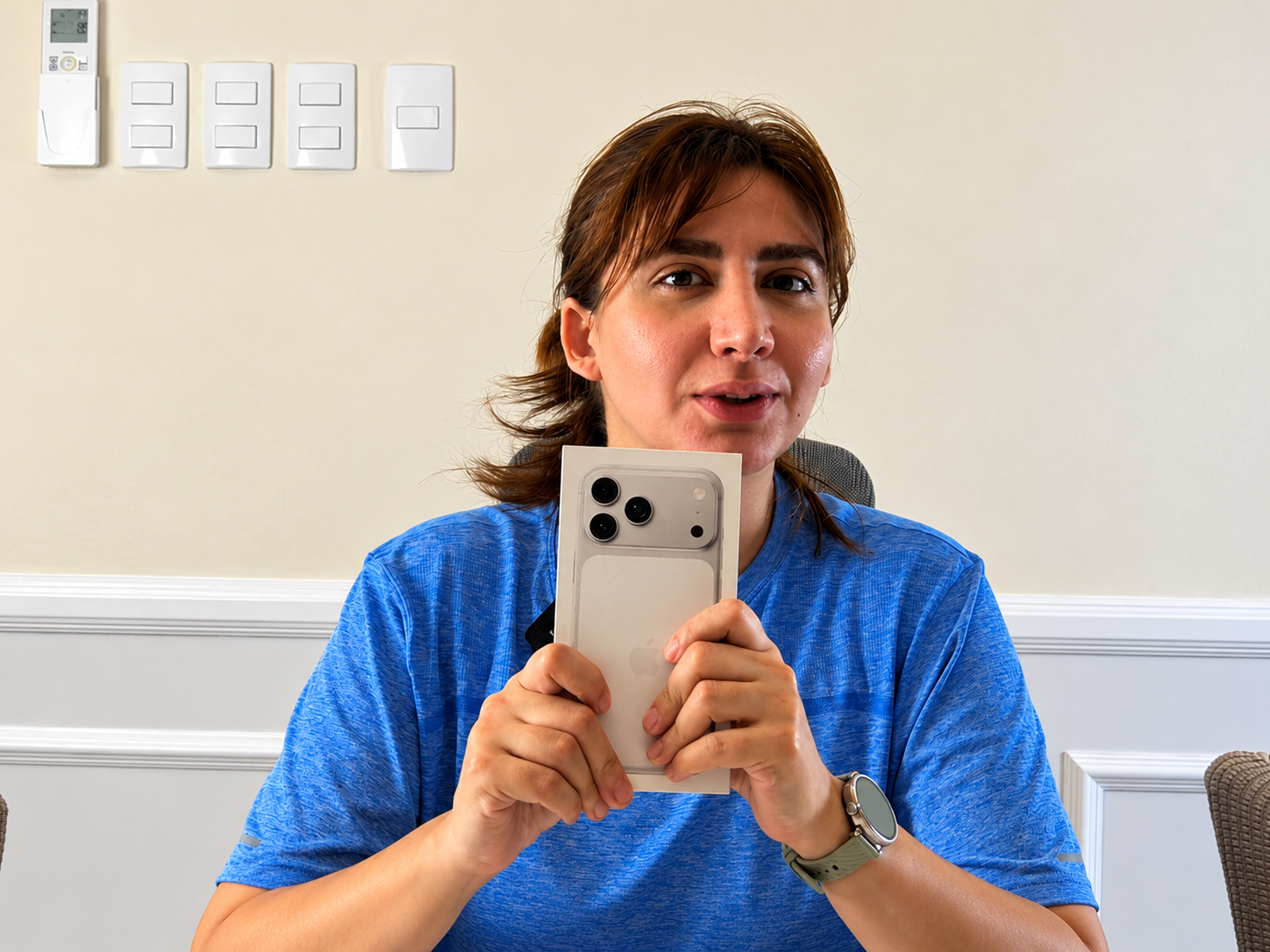
In the video, I opened up the new iPhone, then worked through something important on my old one before starting Apple’s transfer: GCash. After that, I placed the two phones together, went through Quick Start, paired them using the old phone’s camera, dealt with a software update that showed up, and watched the transfer until it completed. Then came the SIM and the apps. It’s a pretty straightforward process when you follow the screens, but it certainly isn’t always a case of pressing one button and walking away.
Photo note: Some images have been AI-enhanced from video frames to make the phones and screens clearer. The exact on-screen words may differ, so follow the prompts on your own iPhone.
Before We Start, Don’t Touch That Erase Button Yet
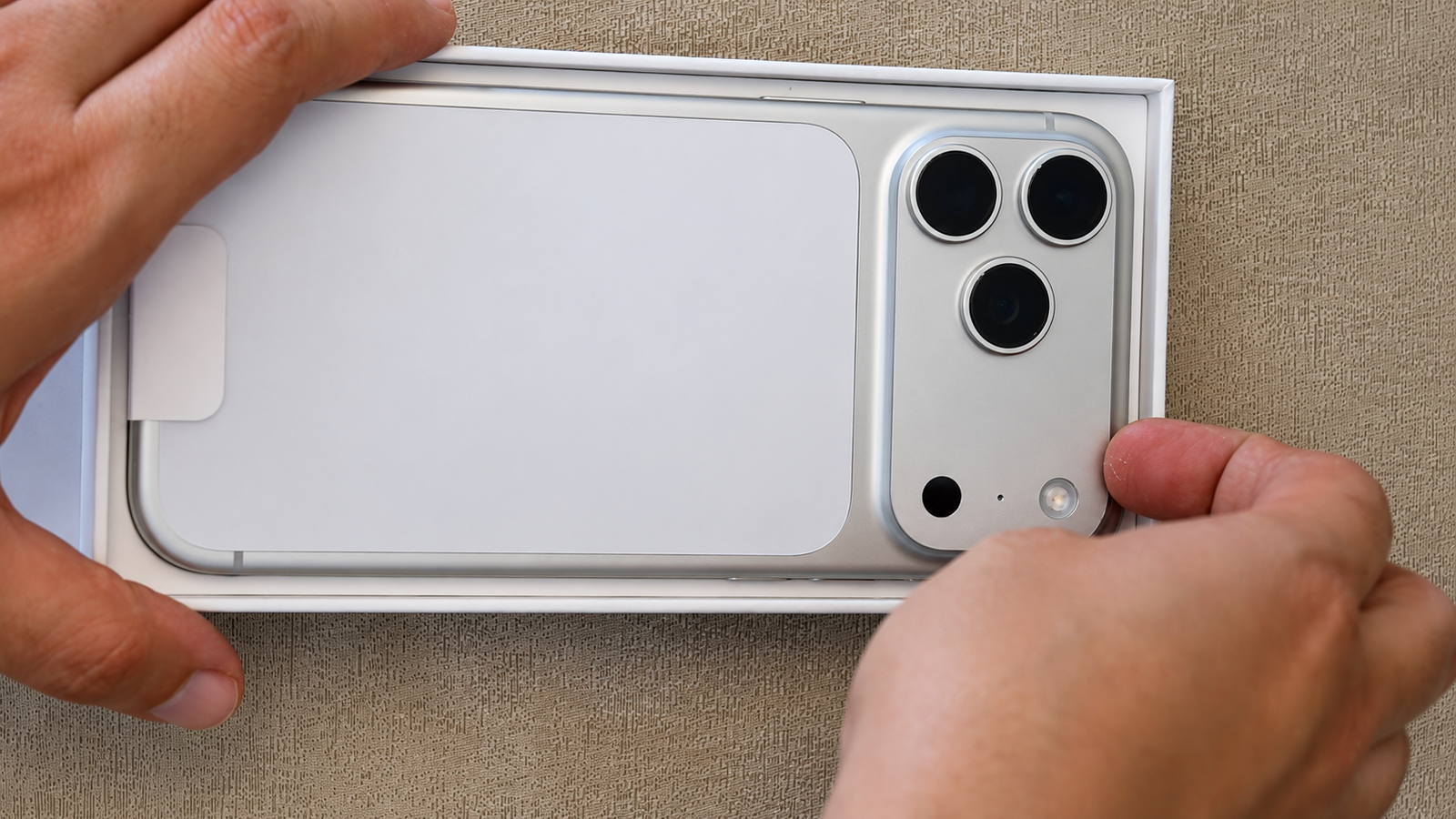
One of the things I learned from using phones for years is that the actual transfer isn’t always the problem. It’s the little things people forget. Your banking app may ask you to verify again. Your phone number may need transferring. That photo you thought was in iCloud might still be sitting on the old phone.
Here’s what I would prepare before switching anything:
- Both iPhones. Keep the old one close to the new one. Make sure both have enough battery, or better yet, plug them into chargers. Ill reiterate this, PLease keep it close. please charge your phone. Transfer speed is dependent on how much files you have. too many cat videos can make it so slow, you may waste half a day for it.
- Wi-Fi and Bluetooth. Connect the old phone to Wi-Fi, then turn on Bluetooth. These help Quick Start find the new phone.
- Your Apple Account. Know your Apple Account password and the passcode you use to unlock the old iPhone. You might be asked for them.
- Your phone number. Check whether you’re using a physical SIM or eSIM. The process can vary depending on your carrier and which regional iPhone model you purchased.
- Enough space. If you’ve got years of photos and videos, make sure the new phone has enough storage for what you want to move.
- A proper backup. Yes, even if you’re using direct phone-to-phone transfer. It’s good to have a backup in case something unexpected happens.
To make an iCloud backup on the old phone, go to Settings → your name → iCloud → iCloud Backup → Back Up Now. Stay connected to Wi-Fi until it finishes. You can also make an encrypted computer backup using Finder on a Mac, or the Apple Devices app or iTunes where supported on Windows.
One Important Thing I Did First: GCash
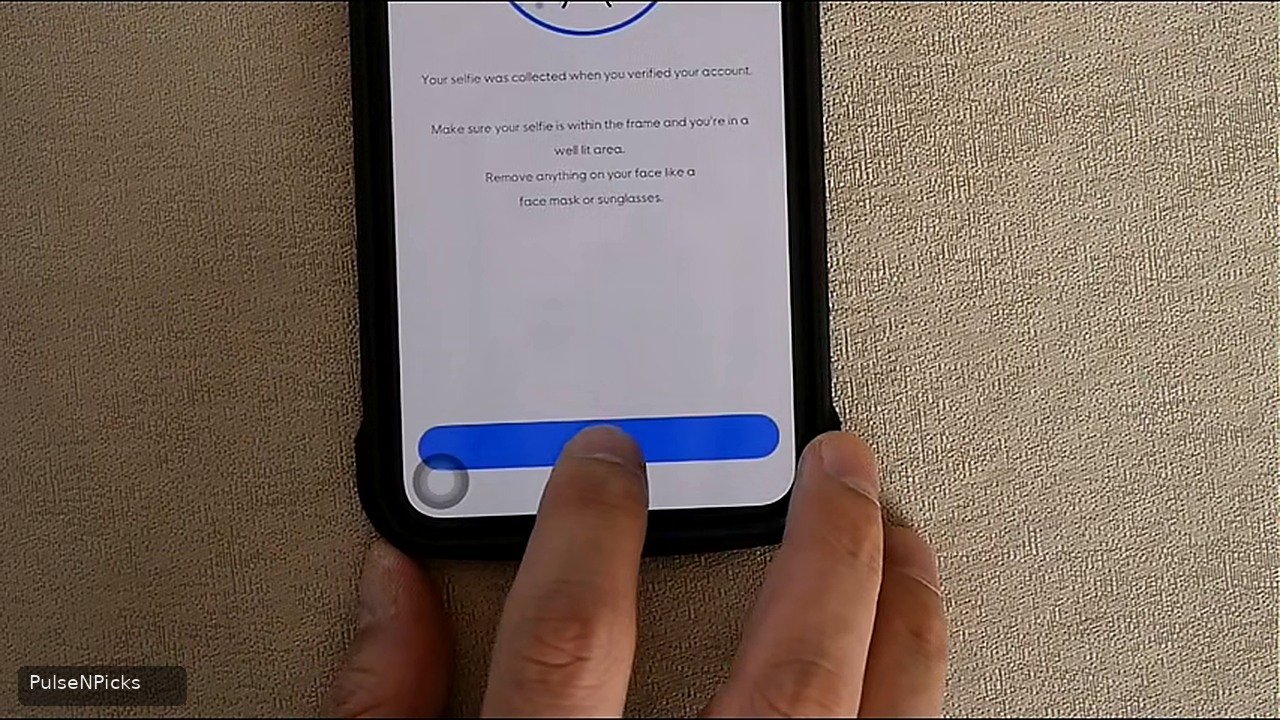
Before transferring, I went into GCash on my old iPhone and checked which device was registered. I had trouble with a phone change years ago, so I wasn’t going to repeat that headache. If you’re using GCash, take care of its device registration before erasing or retiring your old phone. Follow my dedicated GCash transfer guide and the app’s current prompts. This is a GCash-specific step, not something everybody needs for Apple’s Quick Start.
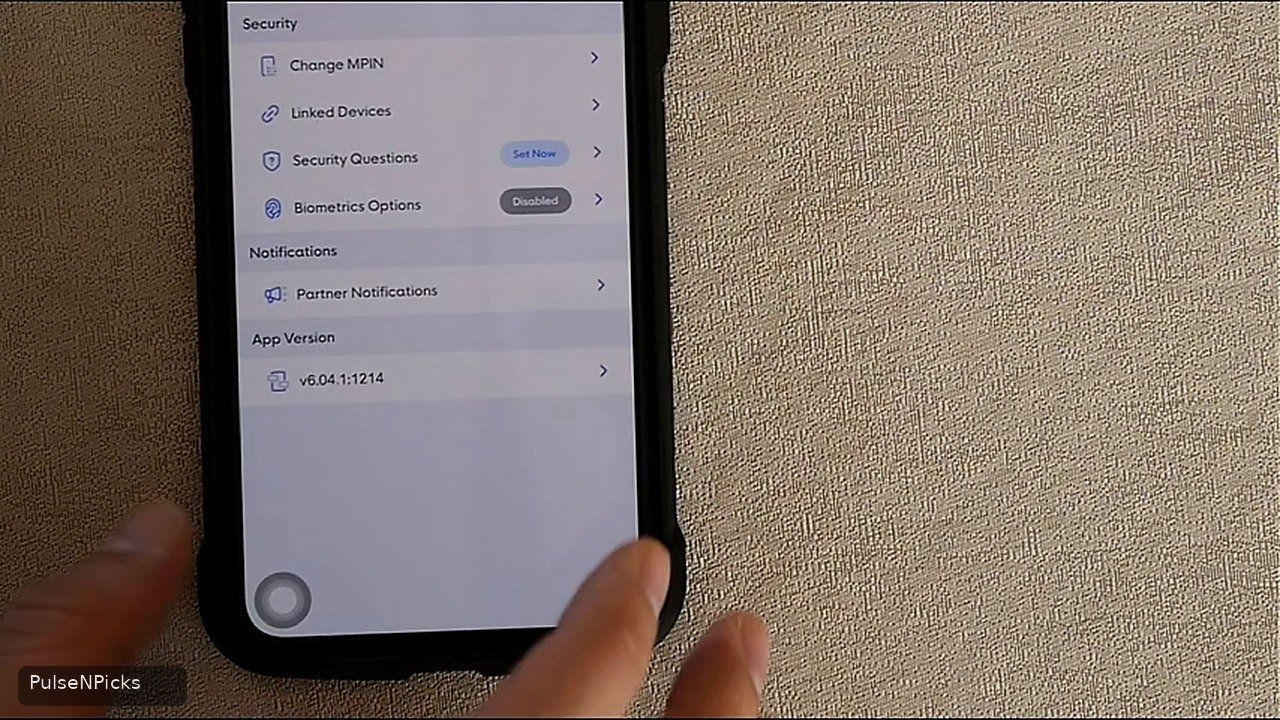
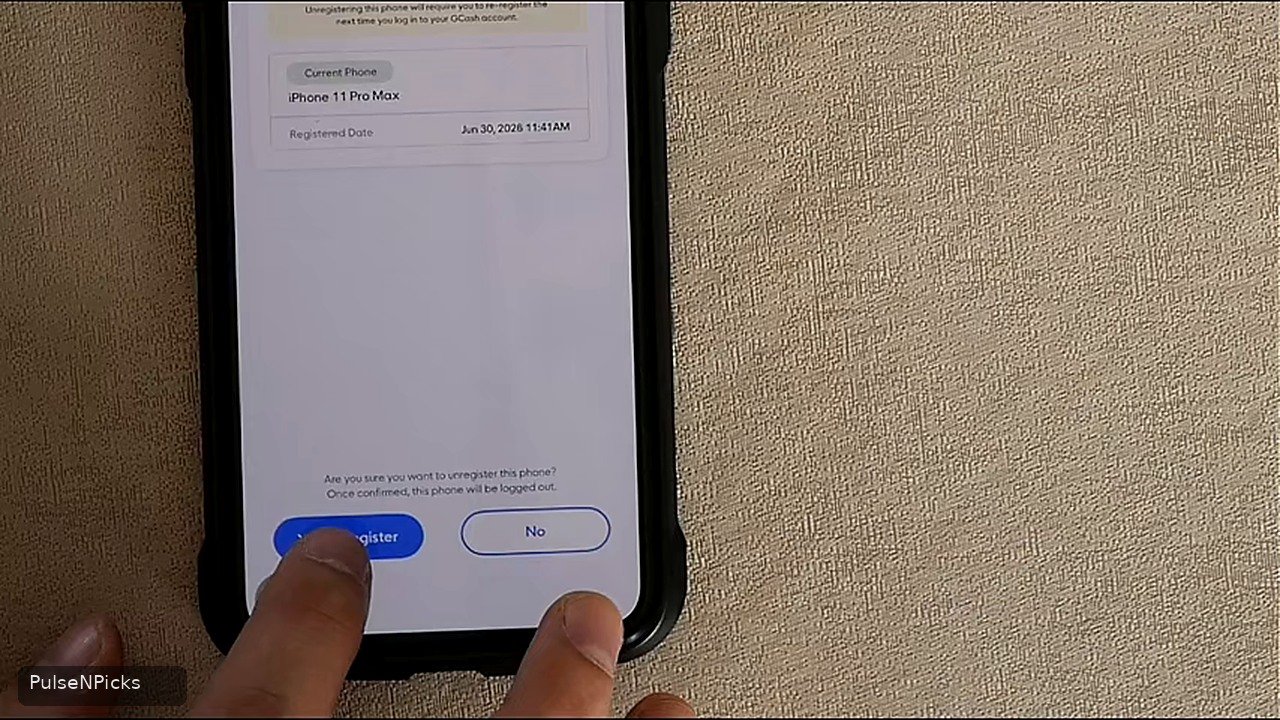
Step 1: Turn On the New iPhone
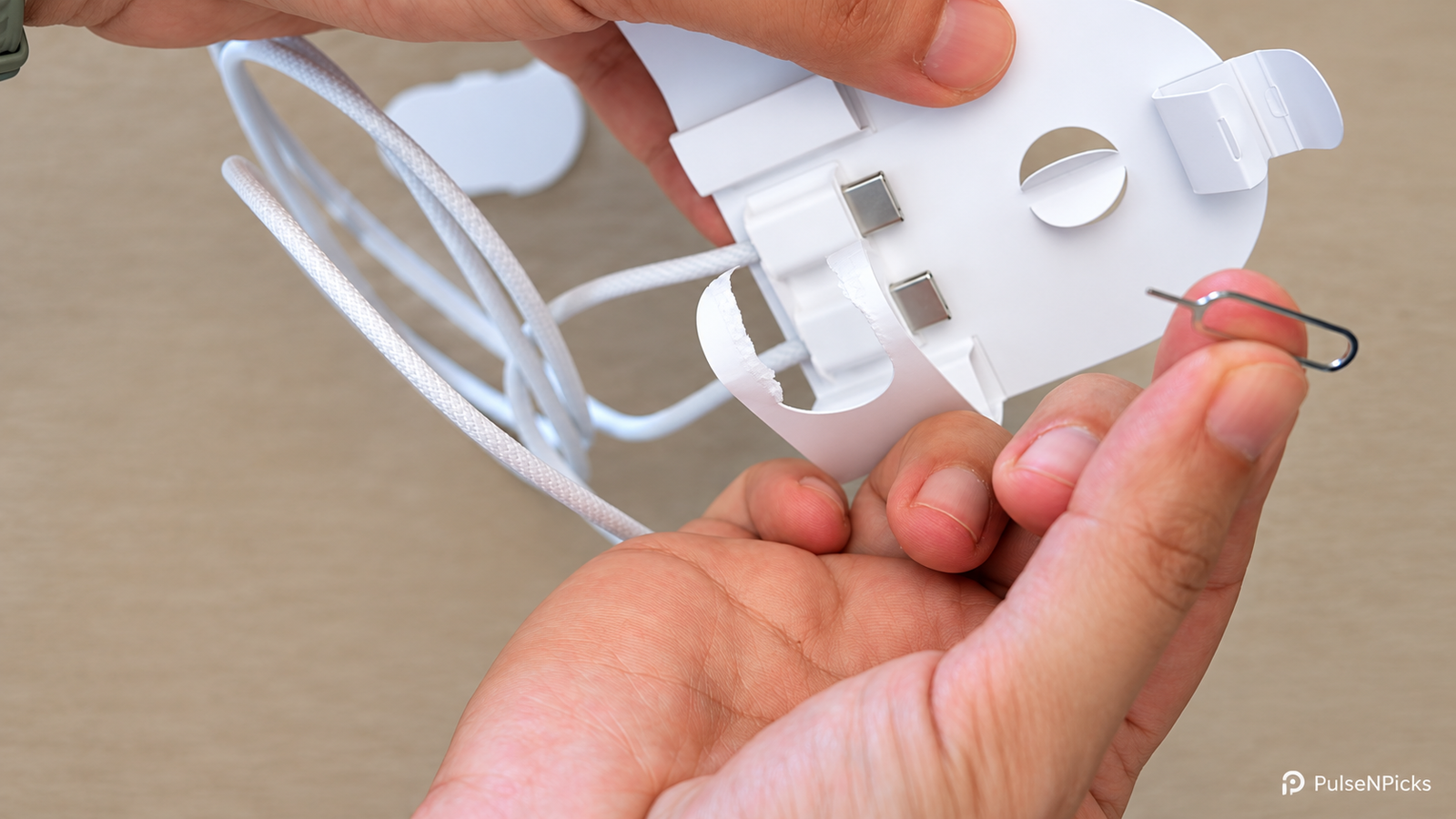
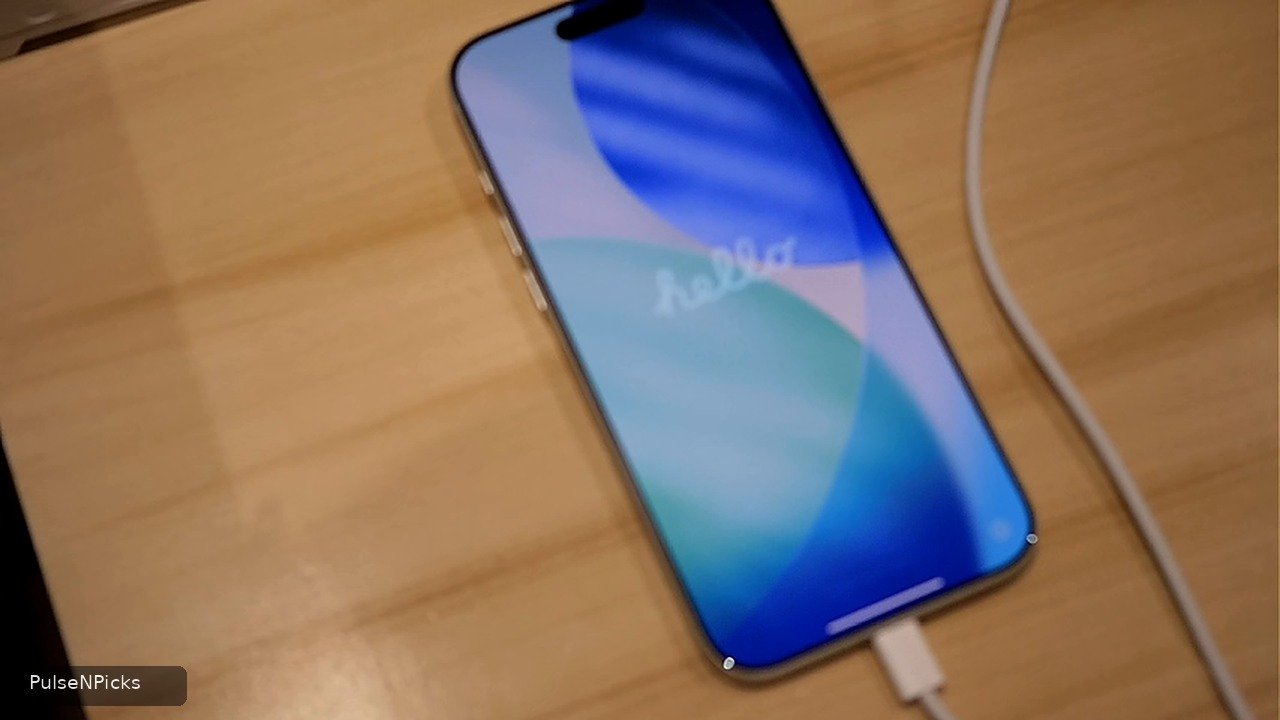
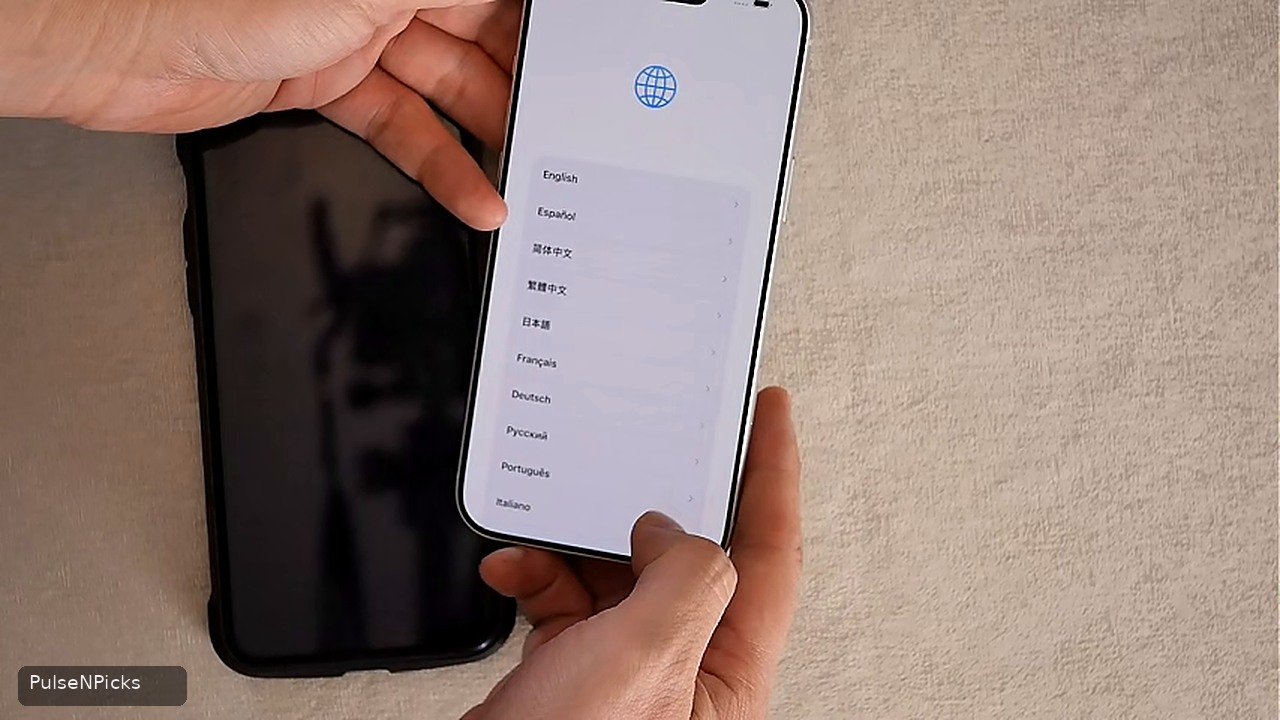
Alright, let’s start. Take the new iPhone out, turn it on and wait for the big Hello screen. You know the one. Even your pet cat knows the one. It’s one of the few times a phone feels completely new, before you’ve filled it with photos, apps and all the other things that eventually take up its storage.
Follow the initial prompts for your language and region. If you’ve already finished setting up your new iPhone and want to start a full Quick Start transfer, you’ll usually need to erase the new phone and go back to that Hello screen. Make sure there’s nothing important on the new phone before doing that. Do not erase your old phone.
Step 2: Place the Old iPhone Beside the New One
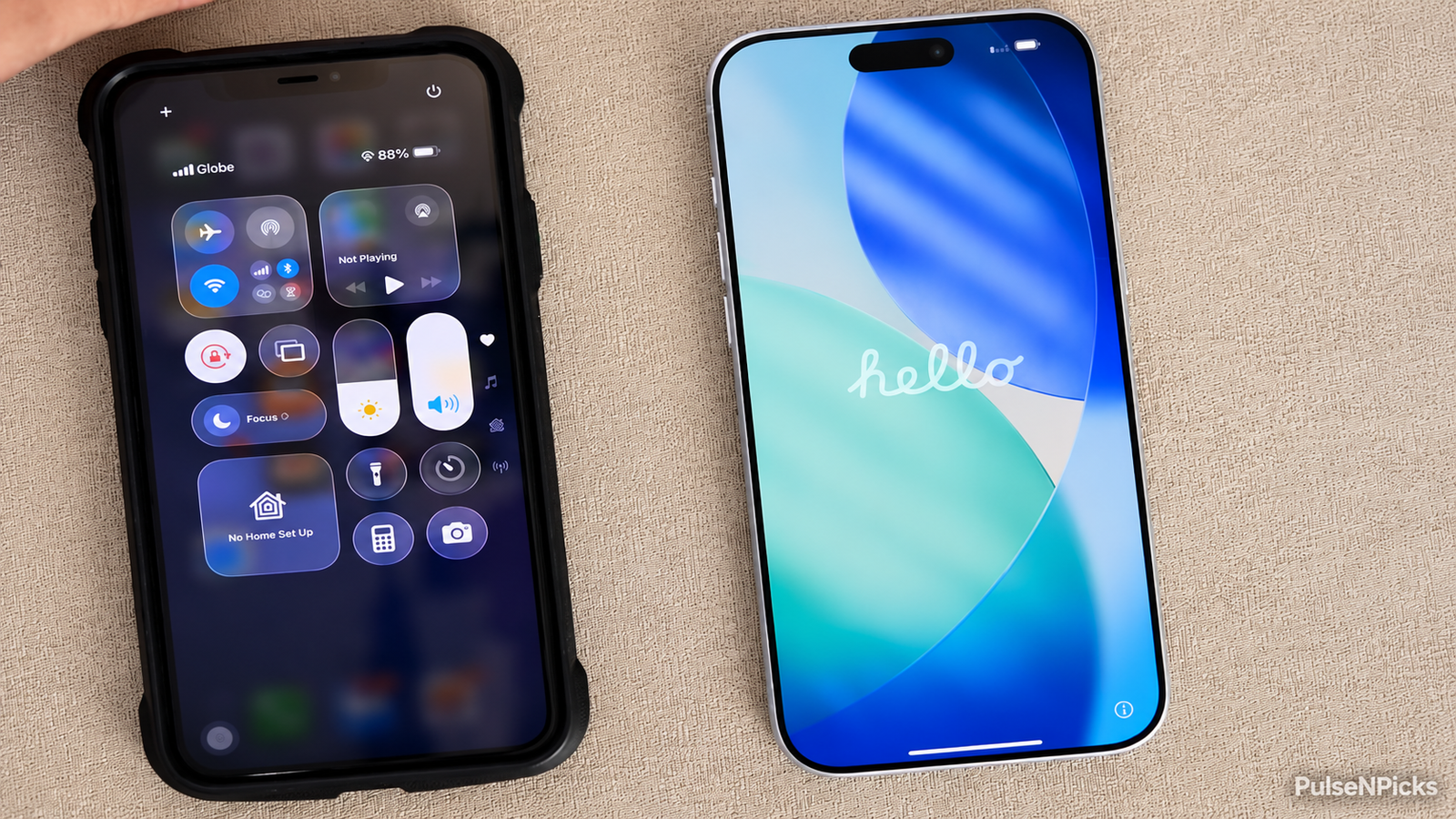
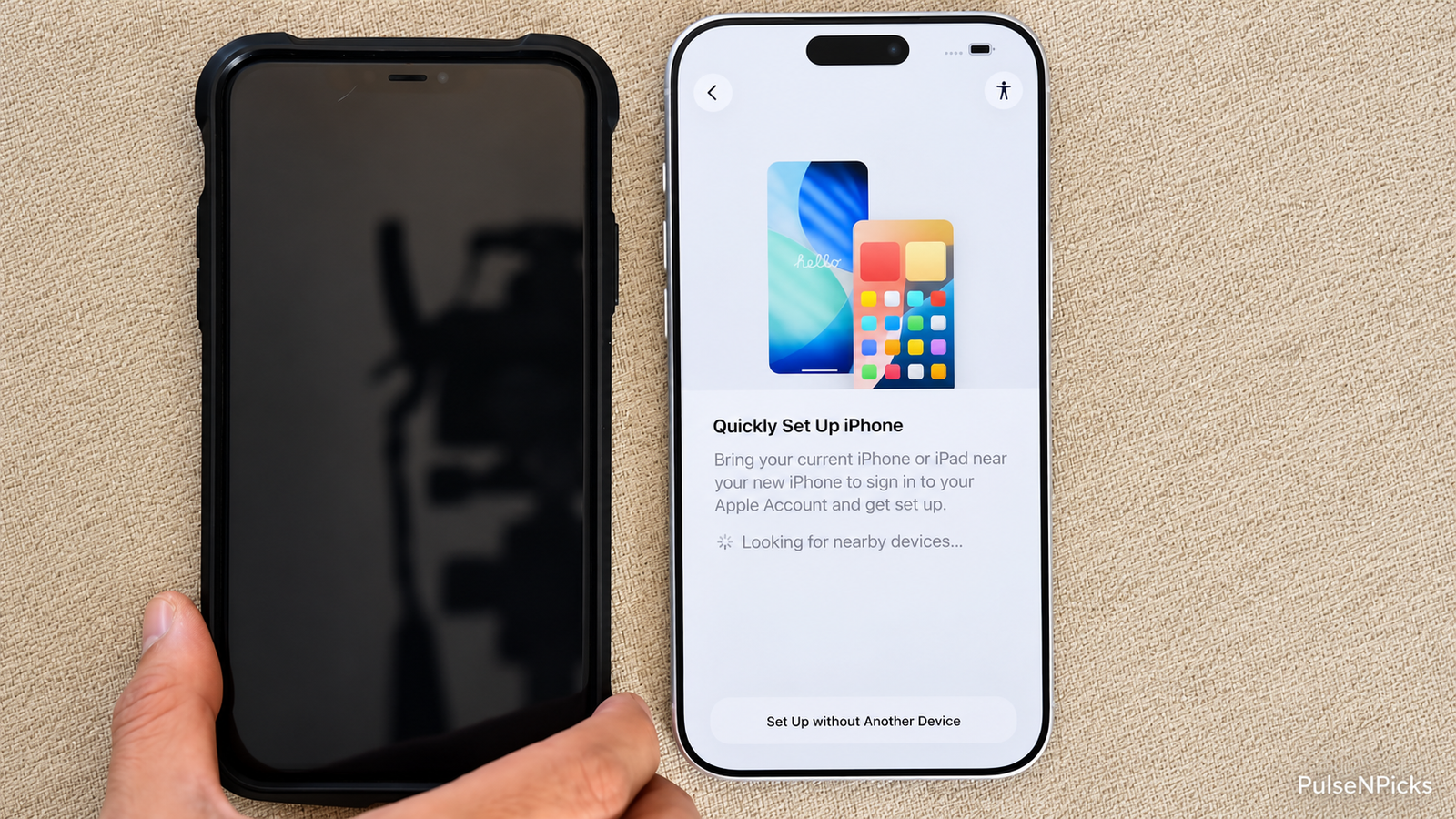
Now unlock the old iPhone 11 Pro Max and put it right beside the new one. Keep its Wi-Fi on and Bluetooth enabled. A message should appear on the old iPhone asking whether you want to set up the new iPhone.
Tap Continue and follow the instructions. That’s the nice thing about Apple’s Quick Start. You don’t need to plug it into a computer just to get started, and you don’t need to move everything one app at a time.
If the message doesn’t appear, check Wi-Fi and Bluetooth again, then restart both phones if necessary. Sometimes the simple things really are the fix.
Step 3: Pair the Two Phones
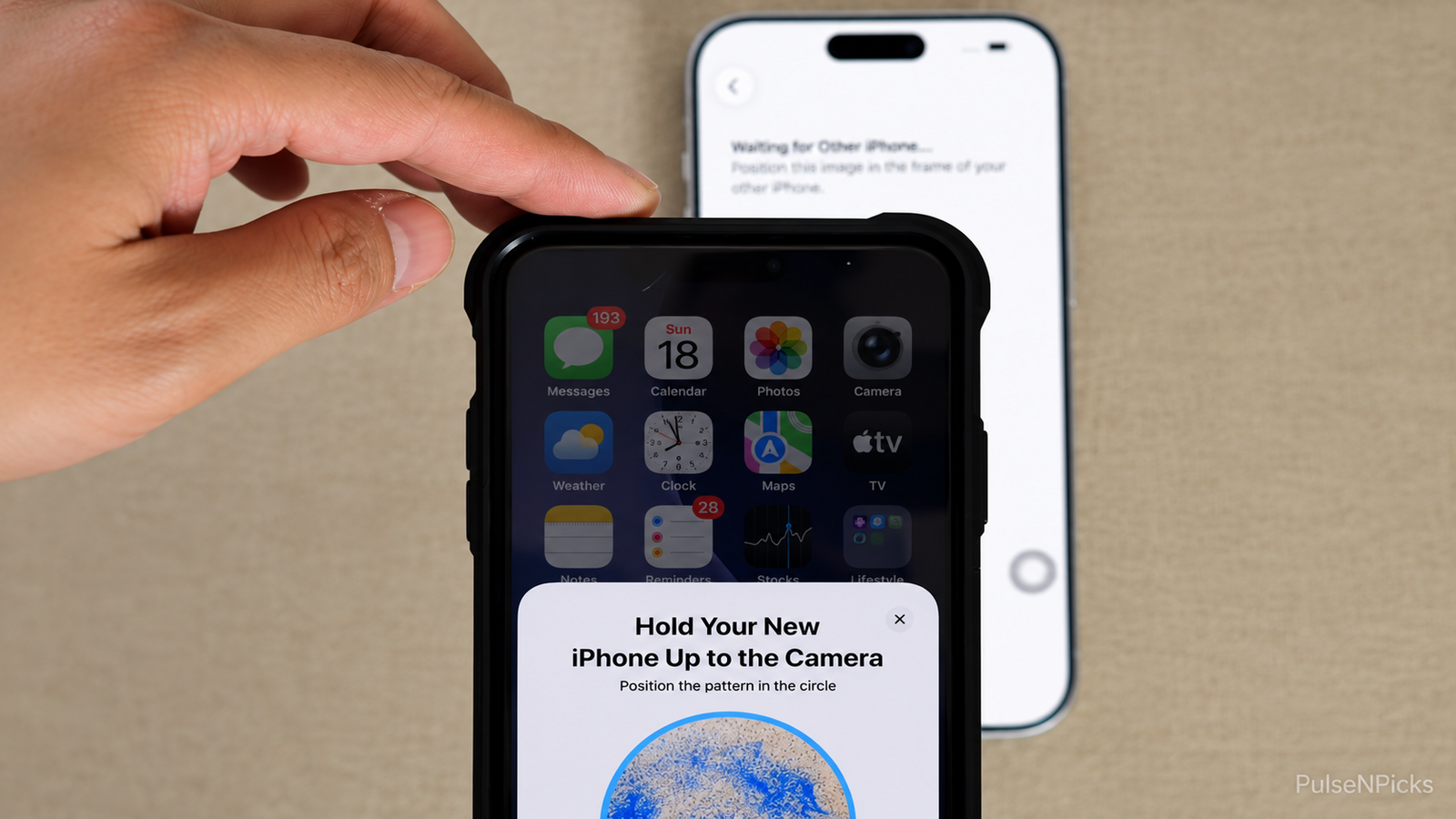
You may see a moving pattern on the new iPhone. If the setup asks you to scan it, hold the old iPhone over the pattern and use its camera to pair the devices. If you’re given a manual authentication option instead, just follow that.
Don’t worry if the screens aren’t exactly like somebody else’s video. Apple changes the wording and appearance of setup screens over time. Follow what your two phones tell you to do.
Step 4: Enter Your Passcode and Set Up Face ID
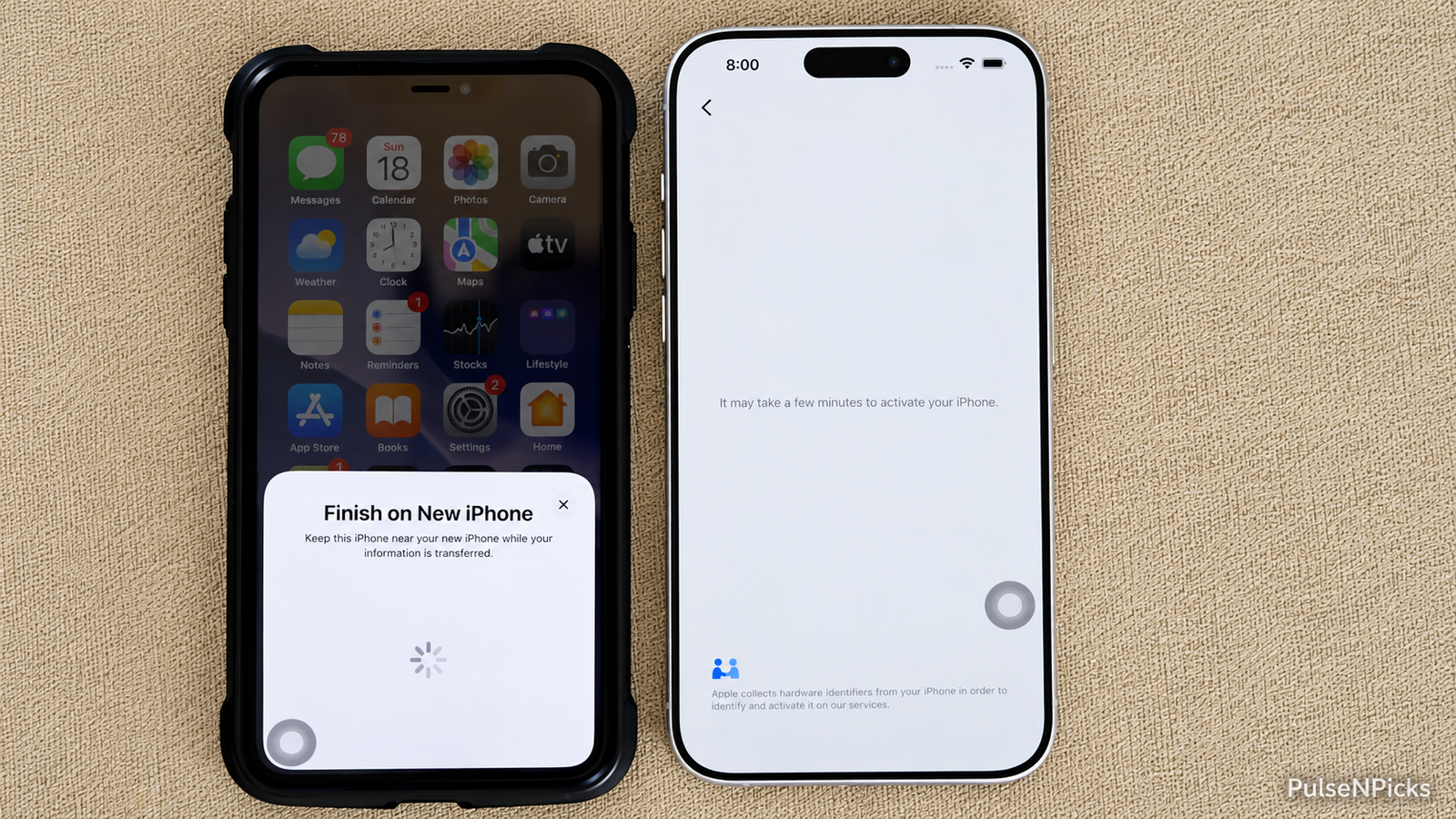
The new iPhone may ask for the old phone’s passcode. Type it in, follow the Wi-Fi or mobile network prompts, and sign in to your Apple Account when required.
You’ll also be asked to set up Face ID. Go ahead and do that. Just remember that Face ID on the new phone doesn’t magically approve every bank or wallet app. Some of those have their own security checks, and we’ll get to them later.
Step 5: Choose How to Move Your Data
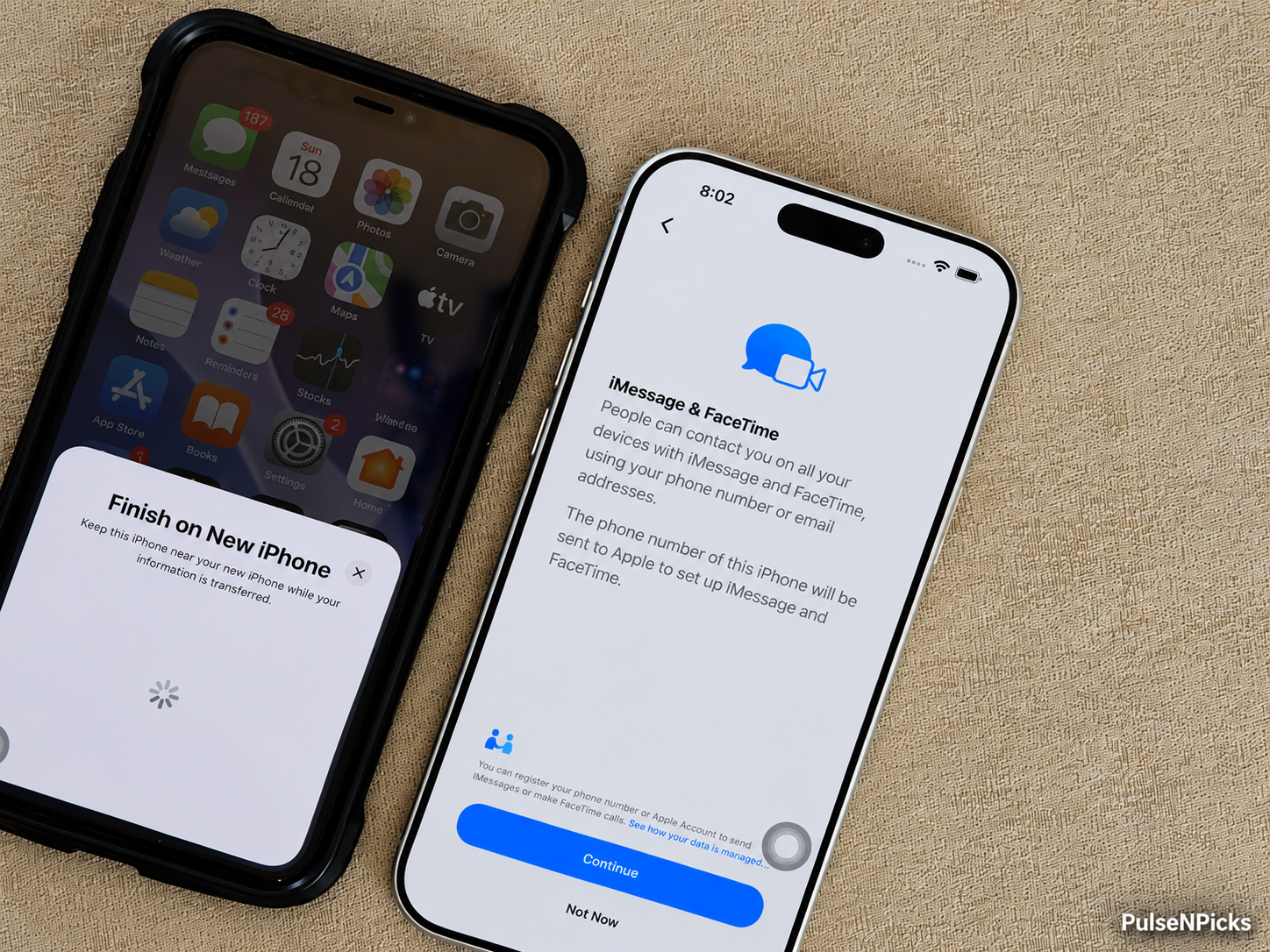
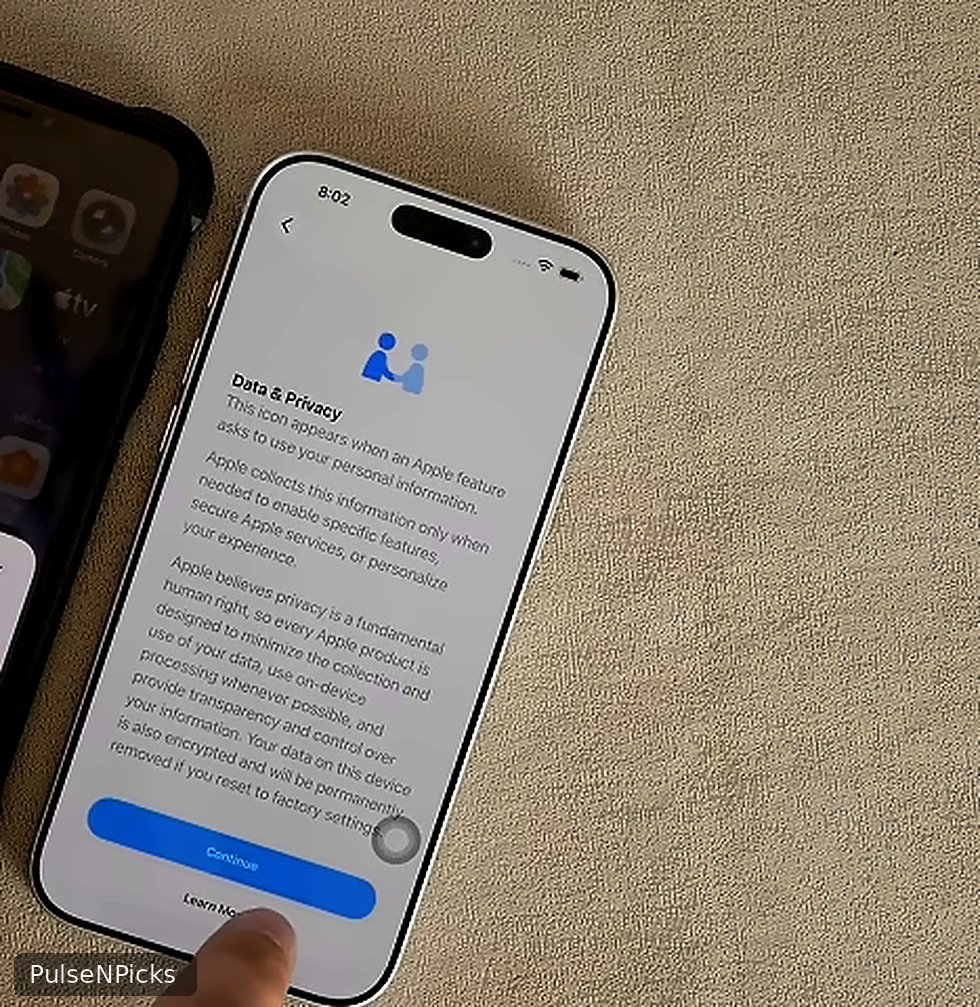
This is the part you really want to pay attention to. During setup, Apple may offer you a choice between moving data directly from your old iPhone and downloading it from iCloud.
Transfer from iPhone: With both phones in front of you, this is the option I’d consider first. Your information moves directly between the devices. Keep them near each other and wait until the transfer is complete before using them normally.
Download from iCloud: If you have a good iCloud backup, this is another way. The phone can become usable while apps and other content continue downloading in the background. Just remember that the process can continue even after you reach the Home Screen.
Which would I choose? If the old phone is still working and I’ve got it beside me, I prefer the straightforward approach of transferring directly. If the old phone isn’t available, an iCloud backup may save the day.
One more thing: If you don’t have enough iCloud storage for a backup, Apple may offer temporary iCloud storage for an eligible new-device transfer. On the old iPhone, look under Settings → General → Transfer or Reset iPhone → Get Started in the Prepare for New iPhone section.
When a Software Update Appears Out of Nowhere
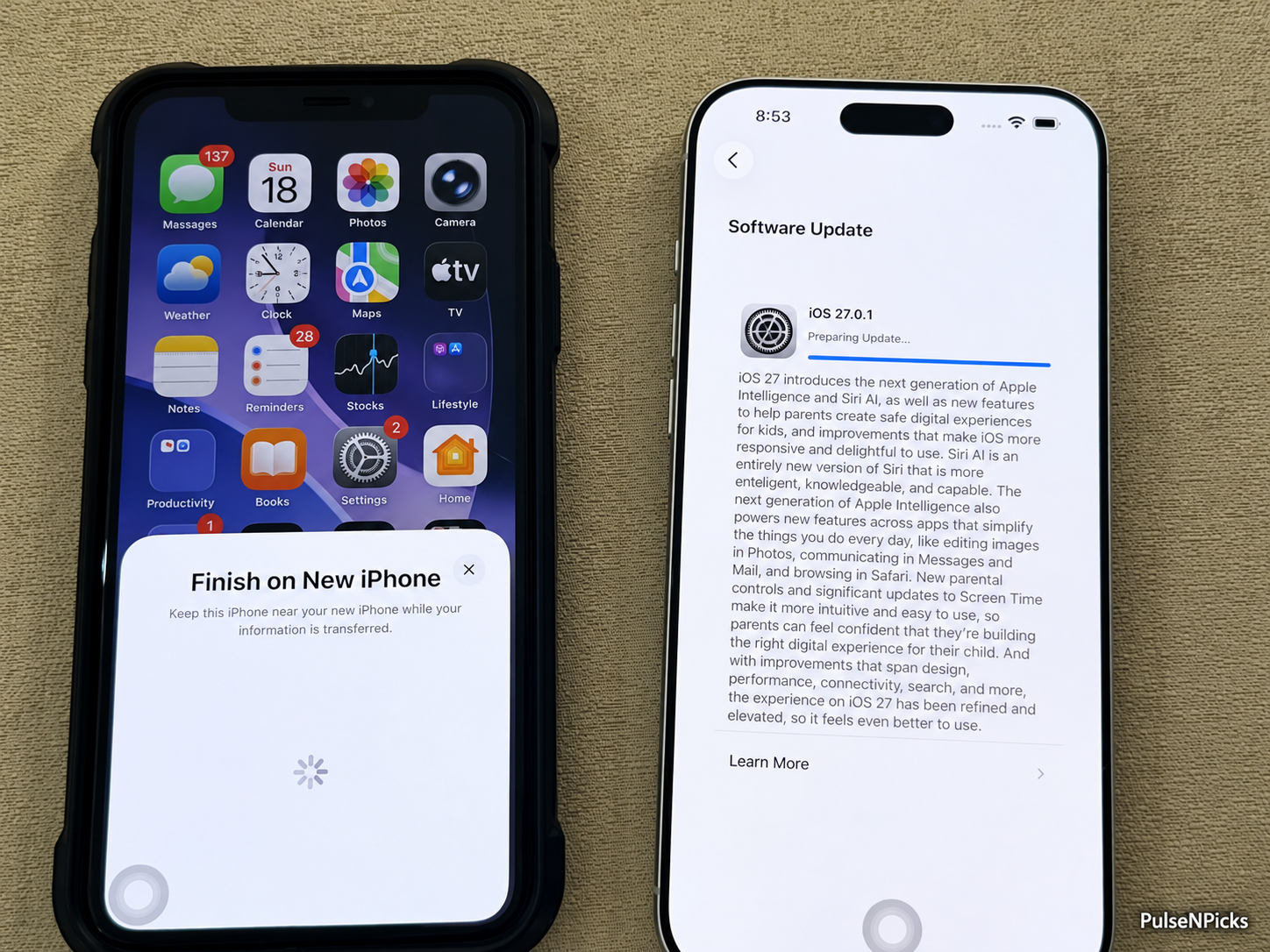
You’ve really got to keep an eye on things during a transfer. A software update may appear out of nowhere, or the new phone may suddenly ask for another confirmation. That’s what happened to me in the video. If an update appears, make sure the phones have power, follow the prompts, and let the update finish before continuing. The old phone may show that it’s waiting while the new one updates. Don’t treat a restart as proof that your data is already transferred.
Step 6: Let the Phones Finish Their Work
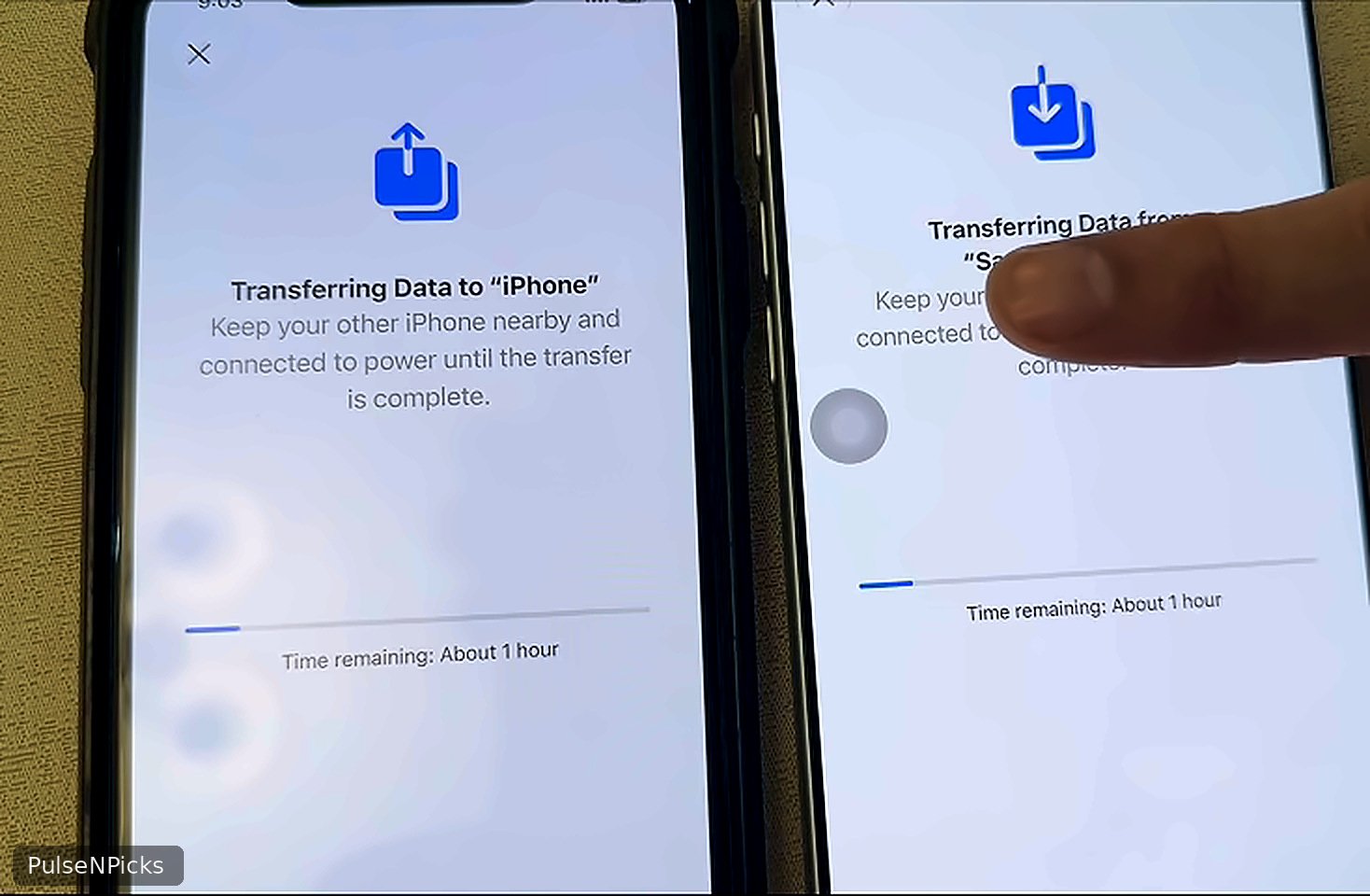
Now, you’ve got to watch what’s happening. Don’t stare at the progress bar every second, but don’t wander off and forget about the phones either. Sometimes there’s a prompt you need to confirm before they’ll continue. And yes, the phones may get a little warm while they’re busy copying everything. They’re doing quite a bit of work, especially when you’ve got years of videos and photos sitting there.
You’ve got to stay cool, like you’re Optimus Prime with the red stuff trying to get you. I know, strange comparison, but the point is that panicking won’t help. A little warmth during a big transfer can be normal. If a phone becomes uncomfortably hot, shows a temperature warning, or starts behaving abnormally, pause when safe, move it out of direct sunlight, and let it cool in a ventilated spot before continuing. Don’t put it in the fridge or cover it with anything. Keep the phones on a firm surface and follow any onscreen temperature instructions.
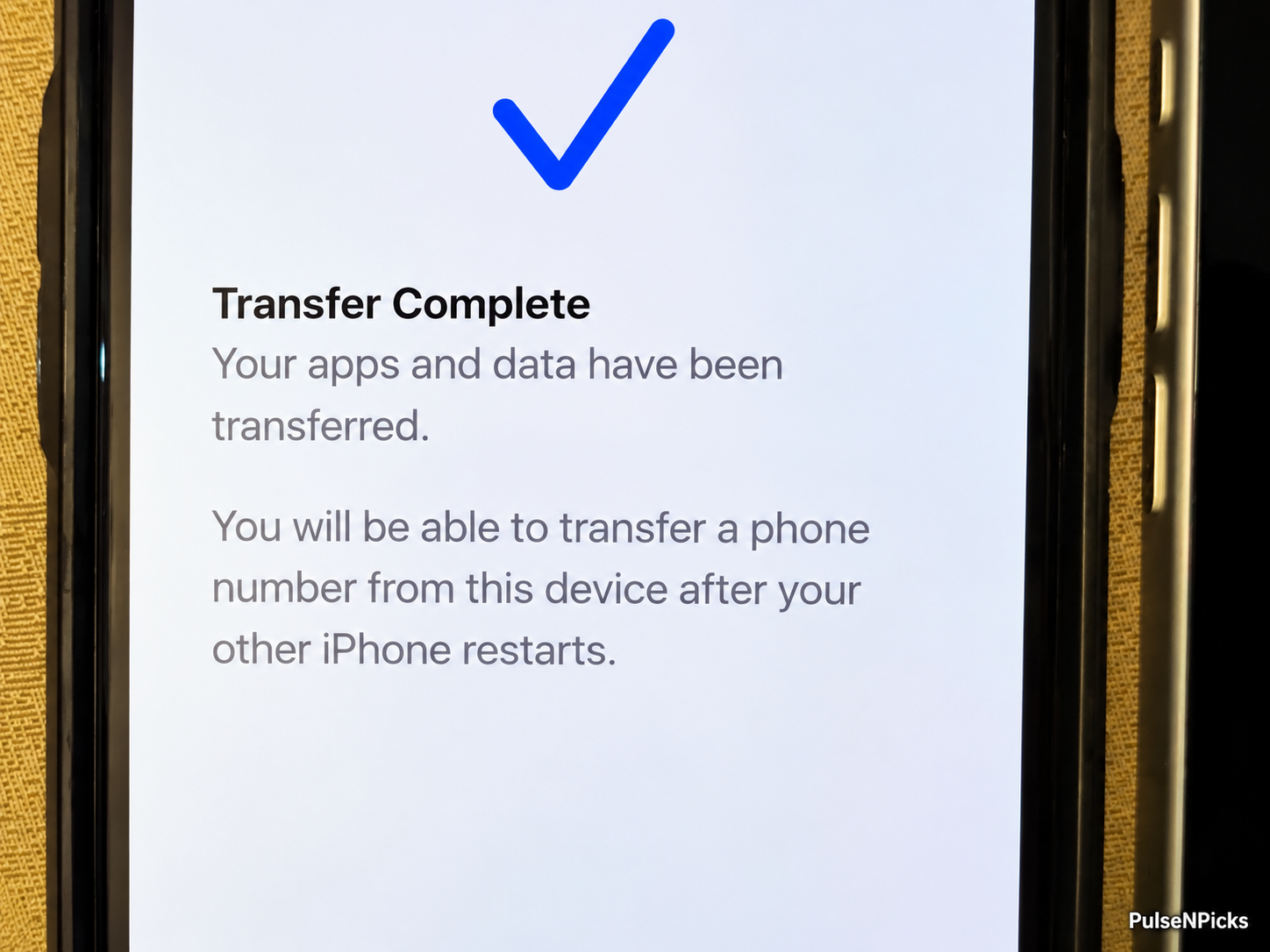
And now we wait. I know, you’ve just bought a new phone and want to start playing with it, but this is not the part to rush.
Keep both phones close together and plugged into power. Don’t interrupt the transfer. The time depends on how much you’ve stored and the connection conditions. If you’ve got years of photos and videos, it’s going to be a different experience from transferring a phone with almost nothing on it.
Wait for the transfer to complete on both screens. If you selected iCloud, remember that some apps, photos and files can continue downloading afterward.
Step 7: What About the SIM Card or eSIM?
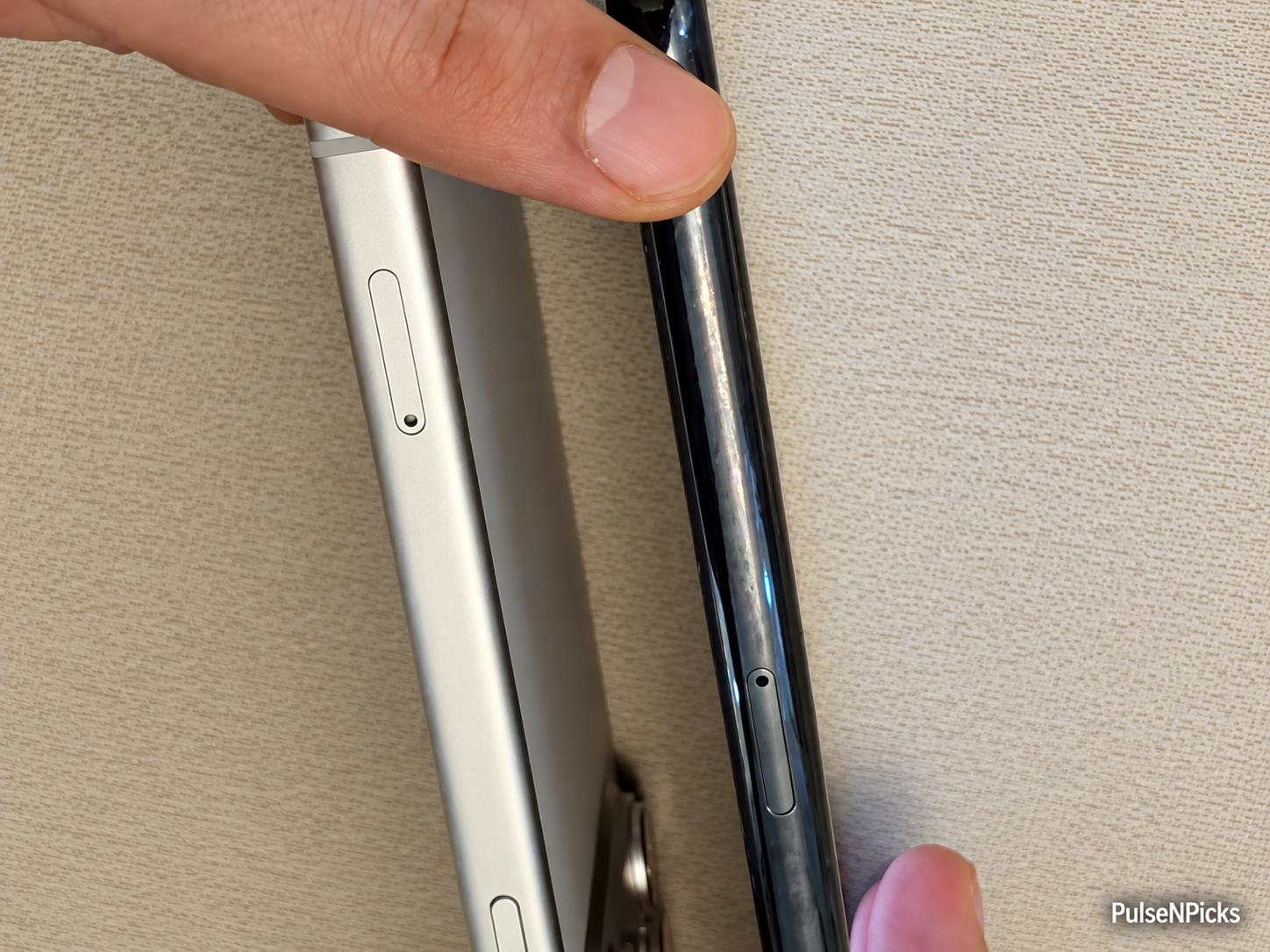
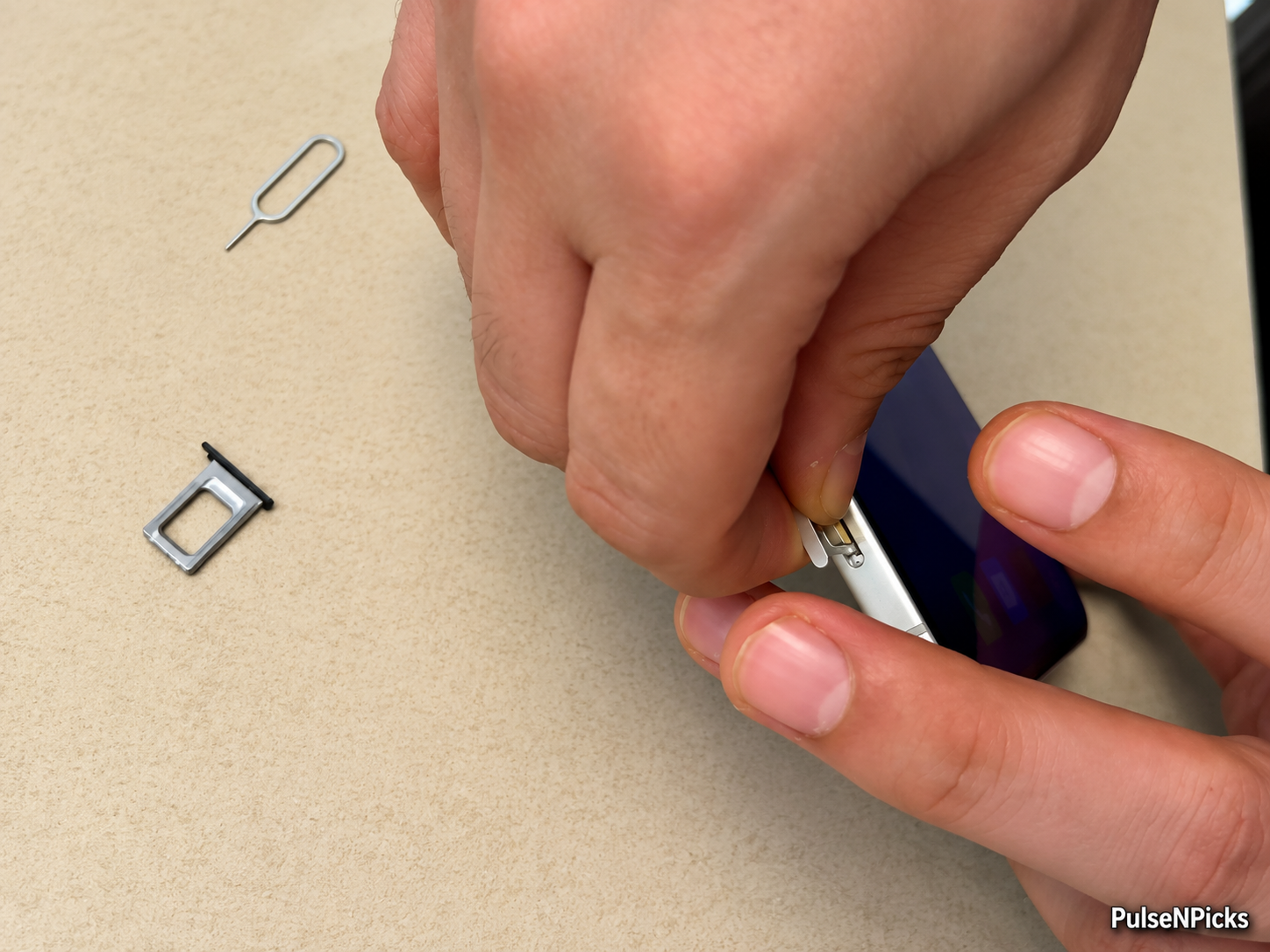
Here’s something people sometimes forget: moving the apps and photos isn’t necessarily the same as moving your phone number. Depending on the iPhone’s region, you may have a physical SIM tray, eSIM support or both.
If your old SIM fits the new model and your carrier supports it, a physical SIM can be moved. If you’re using eSIM, your carrier may support transferring it during setup, or you may have to activate it through their instructions. Look under Settings → Cellular → Set Up Cellular or Add eSIM if you’re doing it after setup. Your carrier might require a QR code or its own verification process.
Before going any further, call or text somebody and see whether the new phone is receiving messages. You’re going to need access to verification codes for some of your apps.
Step 8: Check Your Photos, Messages and Apps
Once the transfer is complete, the new phone may also introduce you to its features through additional screens. There is no need to panic about these; focus on checking that your important data and apps are present.
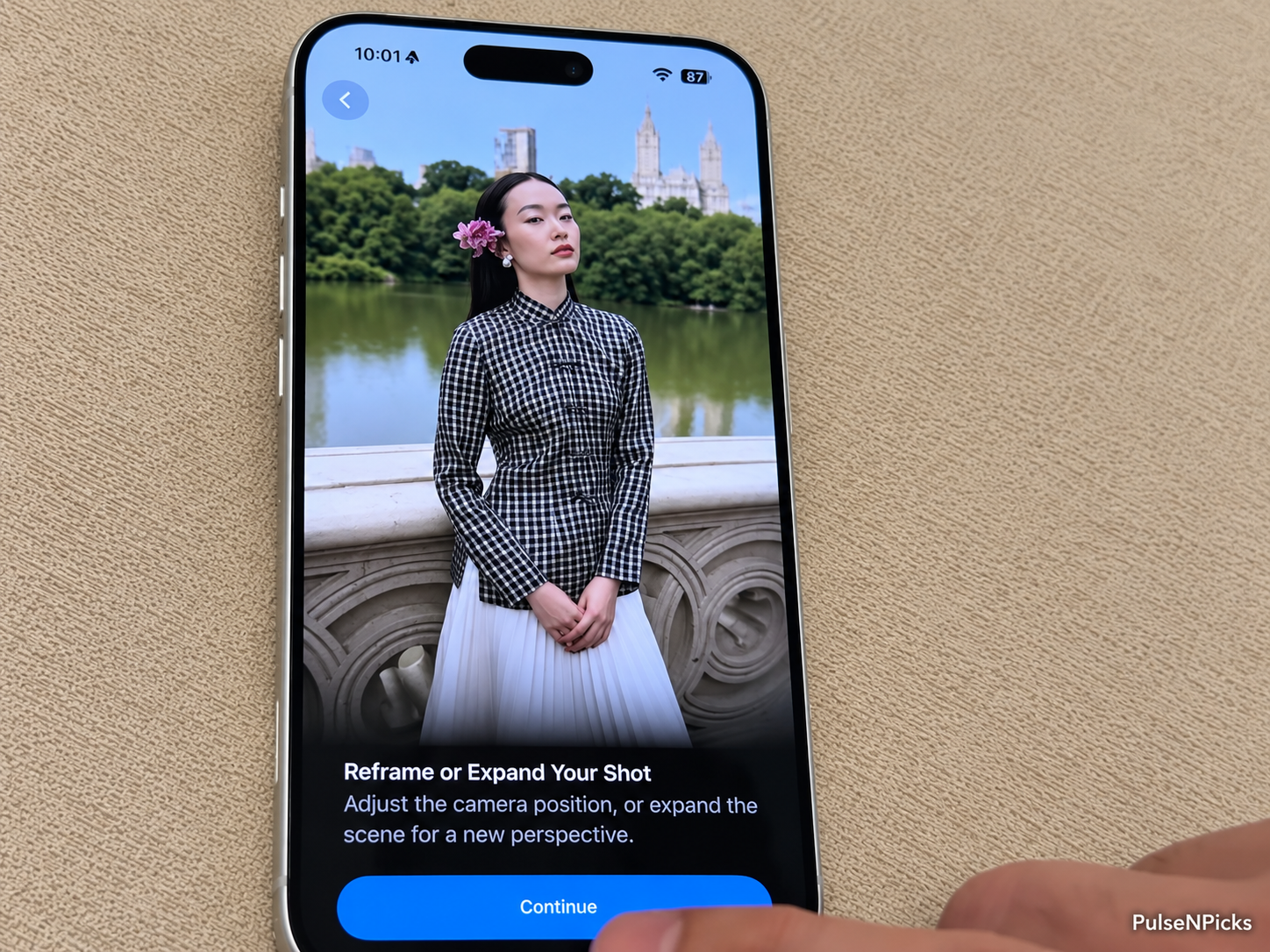
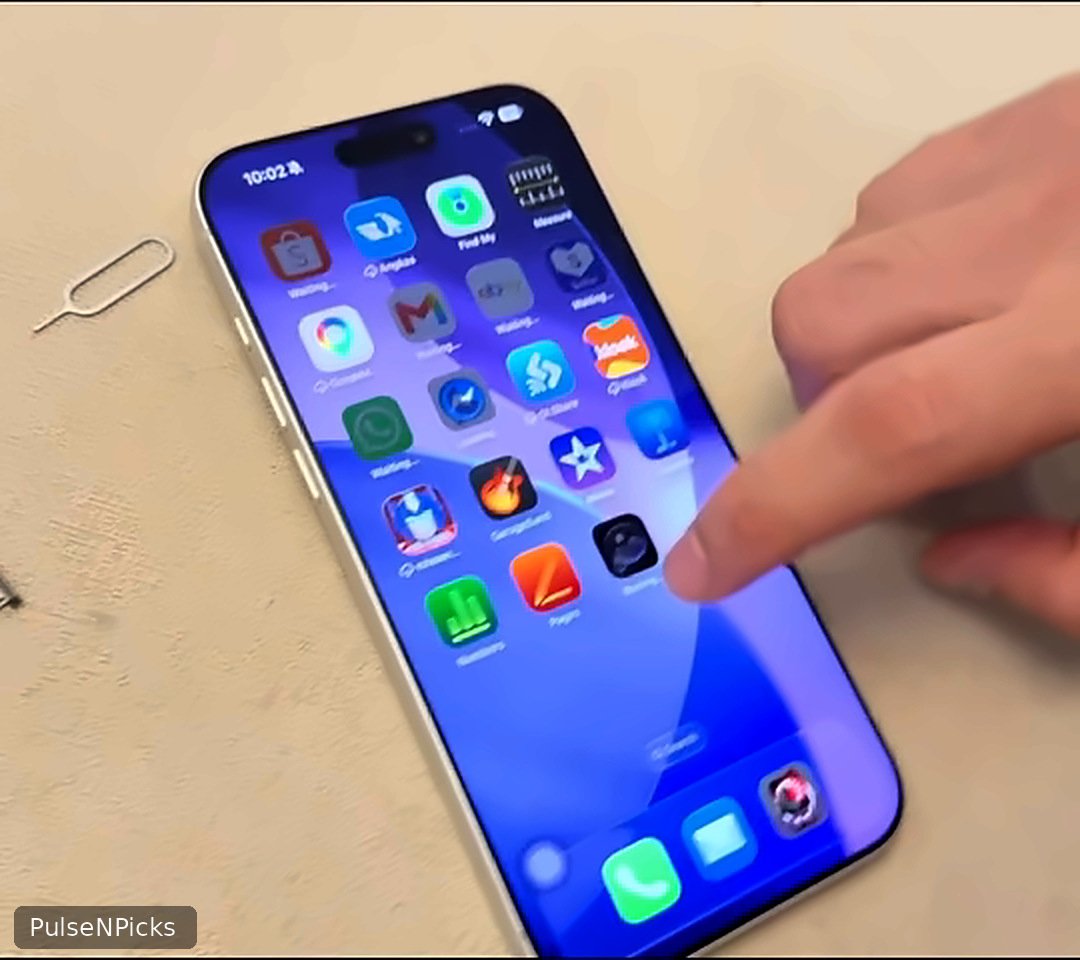
Alright, the new phone is working. Are we finished? Not yet. Just because you see your Home Screen doesn’t mean every little thing has finished transferring.
Open Photos and check whether your pictures are there. Look through Contacts, Messages, Notes, and the apps that matter to you. If you’re using iCloud Photos, give it time to sync. Also check your email, saved passwords, two-factor authentication apps and any chat applications that maintain their own backups.
This is where the old phone really comes in handy. Don’t trade it in or give it away the same afternoon if you still have accounts to check.
Step 9: Don’t Forget GCash and Your Banking Apps
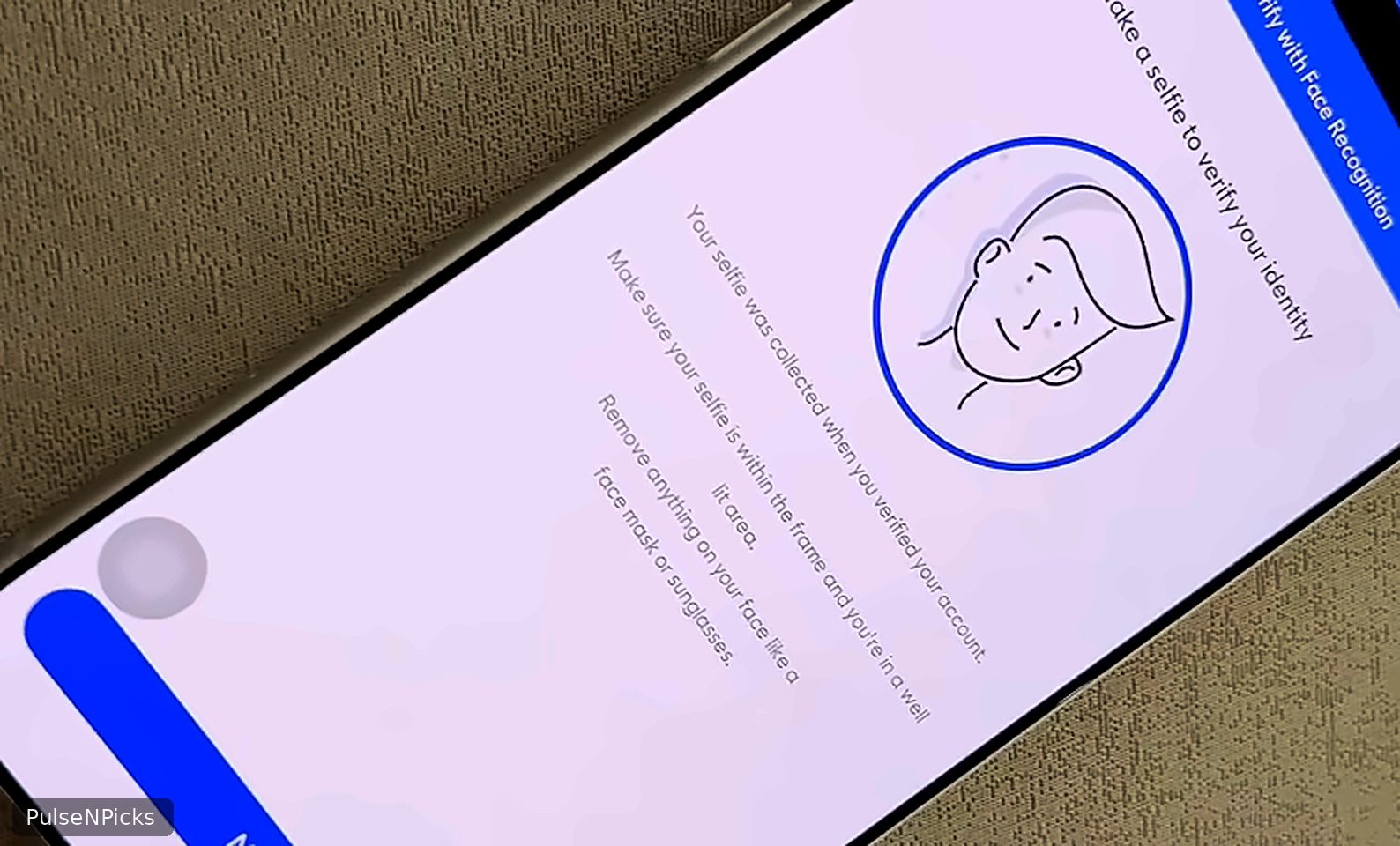
Now for the part that can give you a headache. I’ve talked about this before. Years ago, I got locked out of GCash when changing phones, and getting things sorted out was much more trouble than I expected. I even lost ₱500 in the process.
So please remember: transferring an app doesn’t necessarily transfer its registered-device authorization. GCash, banks, authenticators and some other services may require you to unregister the old phone, register the new one, sign in again or verify your identity. Follow the current prompts from each provider.
I already wrote a separate walkthrough for this exact problem: How to Transfer GCash to a New iPhone Without Getting Locked Out. Read that before you wipe the old iPhone. It’ll save you from finding out the hard way.
And never give anyone your OTP, account password or banking PIN just because you’re setting up a new phone.
Step 10: Only Erase the Old iPhone When You’re Sure
I can’t stress this enough. Please, don’t erase the old iPhone simply because the new one turned on and your wallpaper appeared. Make sure your important photos, messages and accounts are there first.
When you really are ready to sell it, trade it in or give it away, follow Apple’s instructions for preparing your old device. You’ll generally find the erase option under Settings → General → Transfer or Reset iPhone → Erase All Content and Settings. Review any eSIM prompts carefully, and unpair an Apple Watch if necessary.
Don’t go through Photos or Contacts manually deleting everything from a device that’s still syncing with iCloud. You could delete those items from your other Apple devices as well. Erasing a device for resale is different from manually deleting synced content.
If Quick Start Isn’t Working, Here’s What You Can Try
Not every transfer goes perfectly. If the old phone won’t find the new one, check Bluetooth and Wi-Fi, then restart the devices. If the transfer can’t finish, confirm you have a stable connection and enough room on the new phone.
You also have two alternatives. You can restore the new iPhone from an iCloud backup during its initial setup, or restore an appropriate backup made on a Mac or Windows computer. Apple also supports a wired transfer from an older Lightning iPhone like the 11 Pro Max to a newer USB-C iPhone, using a suitable USB-C to Lightning cable.
Whatever method you use, look at the actual backup date before restoring. You don’t want to discover that the copy you relied on was made months ago.
Was It Worth Moving From the iPhone 11 Pro Max to the 17 Pro Max?
For me, the old iPhone was not suddenly useless. That’s the thing about phones you keep for years. They become familiar. You know where everything is, how the camera behaves, even the little annoyances. But when you begin noticing more lag than you used to, and using the device starts becoming a chore, you eventually ask yourself whether it’s time.
You don’t have to upgrade every year. I certainly didn’t. And if your older iPhone still does everything you need, good for you. Keep using it. But when you finally decide to change, take a little care moving your data so that your memories and accounts come with you.
Final Thoughts
Sometimes in life you’ve got to upgrade, even when you think you don’t need to. You tell yourself that the old one is still doing fine, and for a long time maybe it is. But then things begin slowing down. You keep putting off the change because you’re comfortable with what you’ve got. I did that with my iPhone 11 Pro Max. I knew every little thing about it, and that’s probably why I kept it for so long.
That doesn’t mean you need to chase every new model. Far from it. But when it’s finally time to move forward, you may as well do it properly. Keep an eye on the unexpected stuff, stay patient when the transfer takes longer than you hoped, and don’t let one warm phone or surprise update ruin your day.
It’s funny how a piece of technology becomes part of your everyday life. My iPhone 11 Pro Max wasn’t just something I took out of a box yesterday. It stayed with me for years. It became slower, yes, but it was still there doing its job, like that old companion I mentioned at the beginning.
So there you go. Back up your old phone, put the two phones together, use Quick Start, check what was transferred and take care of your banking apps. Then, and only then, retire the old one. There’s no reason to lose years of memories just because you got yourself a newer iPhone.
Official Apple Guides
- Apple’s Quick Start transfer instructions
- Apple’s transfer methods and backup options
- Temporary iCloud storage when upgrading
- Apple’s wired transfer guide
WHERE TO BUY THE IPHONES
Upgrading? Here are the iPhone 11 Pro Max and iPhone 17 Pro Max shopping links I mentioned. Check the seller and the phone’s exact condition, storage and warranty before ordering.
iPhone 11 Pro Max
The older model I used for years. Check whether the listing is used, renewed or refurbished, and look carefully at battery condition.
iPhone 17 Pro Max
The phone I upgraded to. Compare the regional model, SIM or eSIM compatibility, storage, price and warranty.
Affiliate disclosure: These are affiliate links. PulseNPicks may earn a small commission from qualifying purchases at no extra cost to you. Product availability and prices may change.