

New phone? Great. Locked out of GCash? Not so great.
Years ago, I made that mistake. My GCash got locked, I lost ₱500, and fixing it involved notarized papers, forms and far more hassle than a mobile wallet should require. It felt like doing government paperwork just to get back into my own account!
This time, switching from our iPhone 11 Pro Max to the iPhone 17 Pro Max, we did things properly. Easy peasy, lemon squeezy. Here’s the order we followed so you can avoid my old headache.
Affiliate disclosure: As an Amazon Associate I earn from qualifying purchases. Shopping links may earn us a commission at no extra cost to you. This is our independent tutorial, not a GCash endorsement.
The 15-second answer
Unregister the old phone → move your SIM → register the new phone → verify your account.
Before you begin: Keep your old phone accessible, have your GCash number ready and make sure you can receive an OTP. This guide is for keeping the same GCash account and mobile number, not opening a new account.
1. Unregister the old phone first
Start with the iPhone 11 Pro Max. Don’t skip this! GCash allows an account on only one registered phone at a time, so you want to release the old one before signing in elsewhere.
- Open GCash on the old phone.
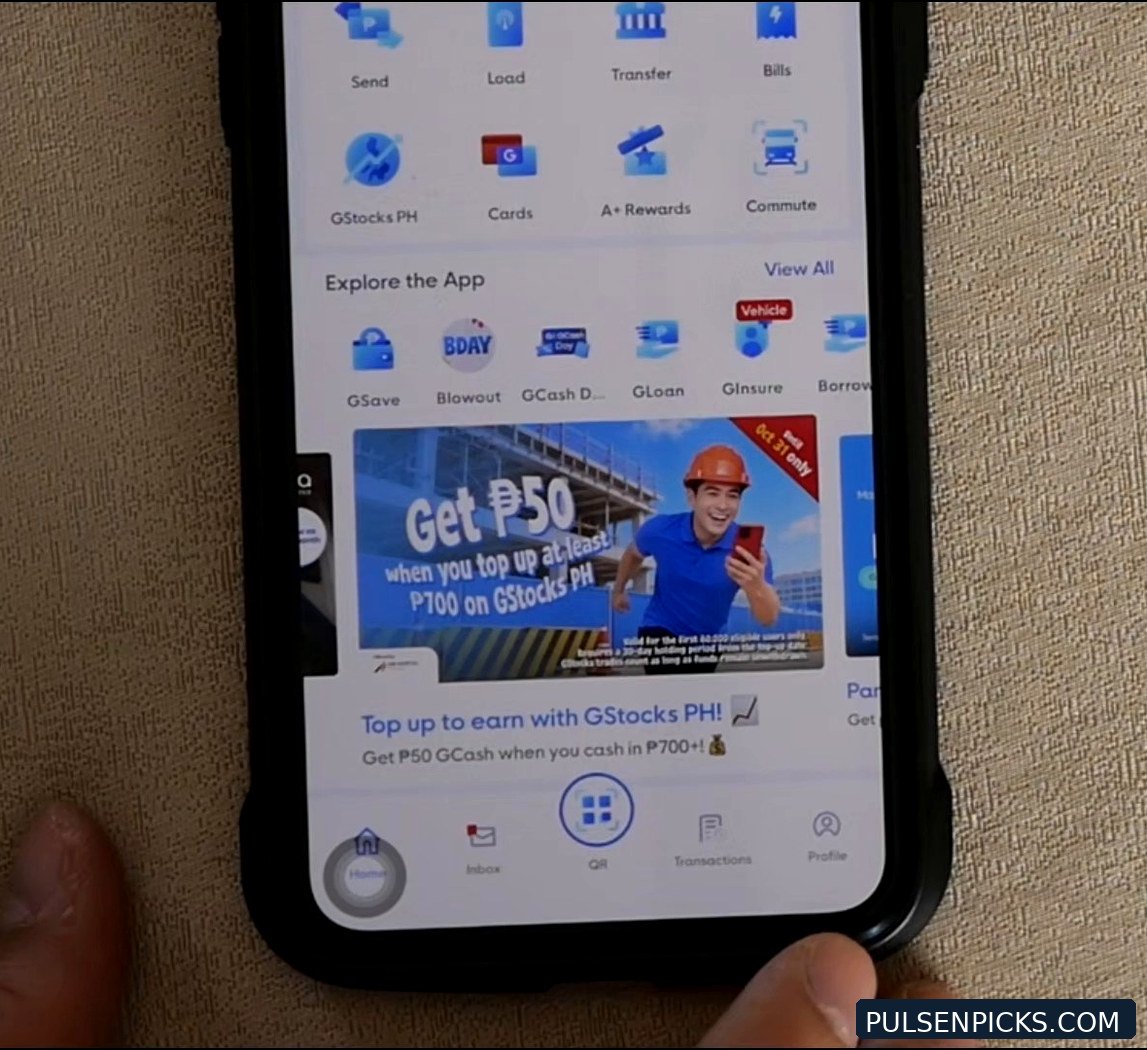
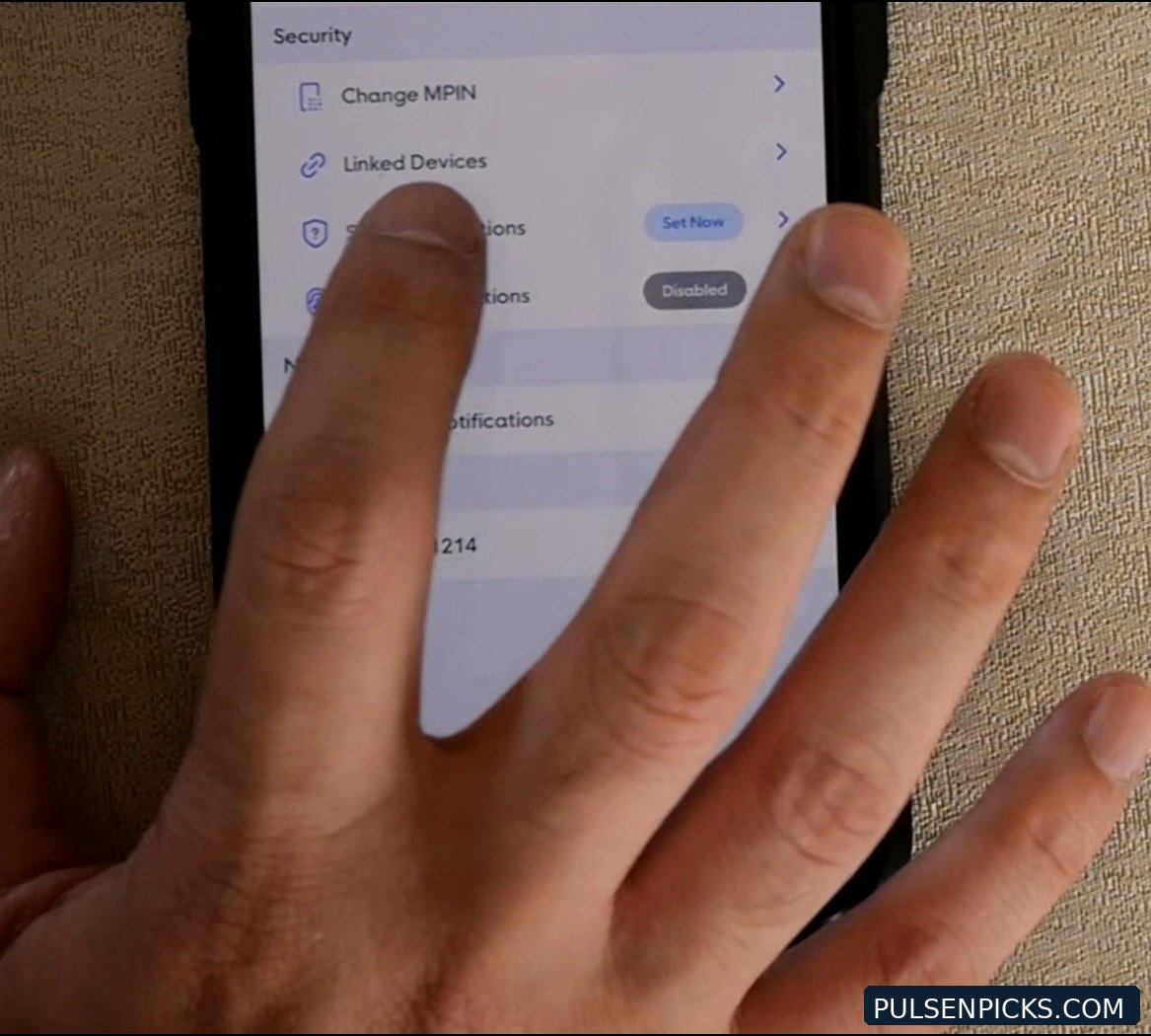
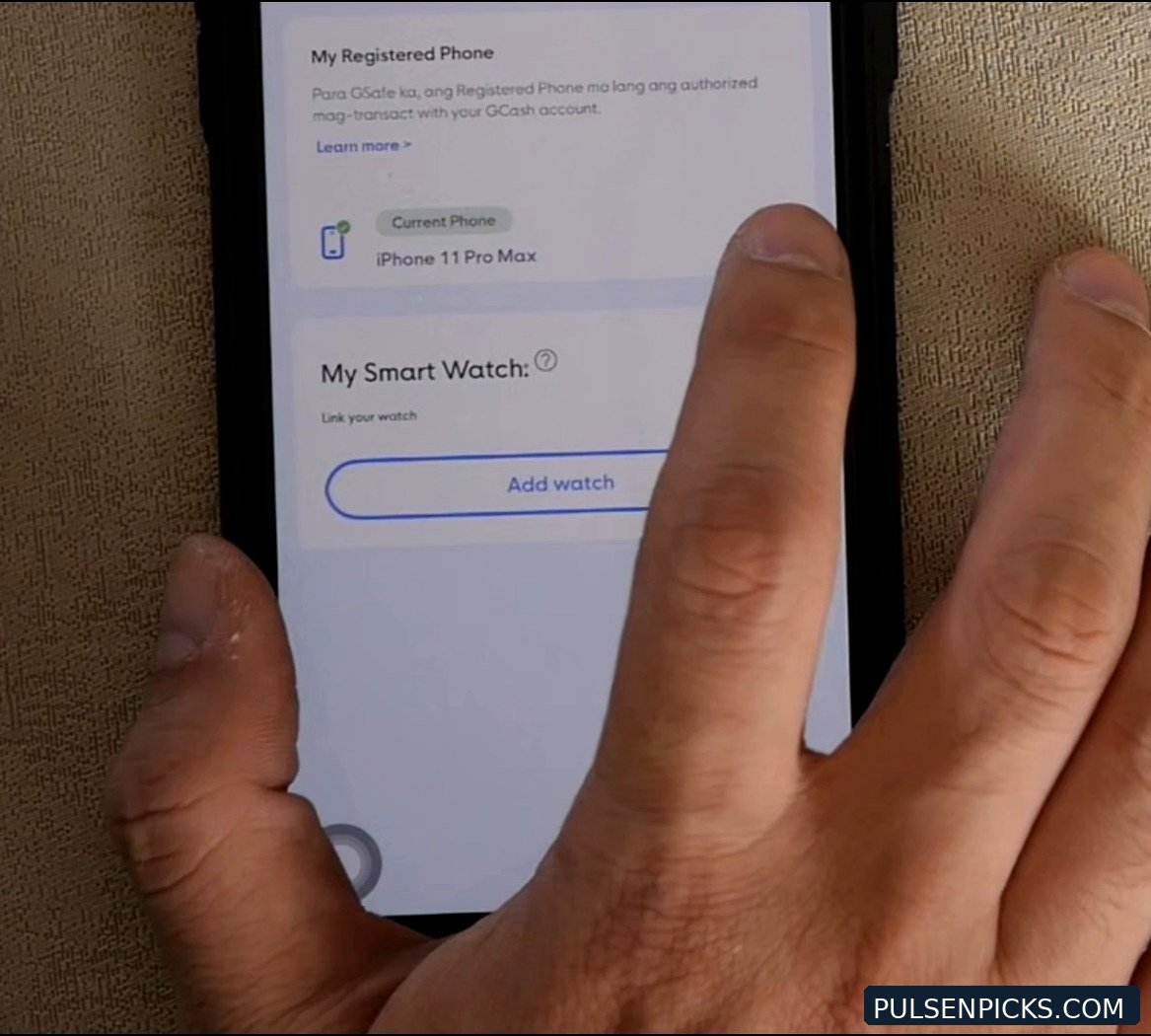
- Go to Profile → Settings → Account Secure → Unregister Phone. On the app version we filmed, the route also showed Security and the registered-phone controls.
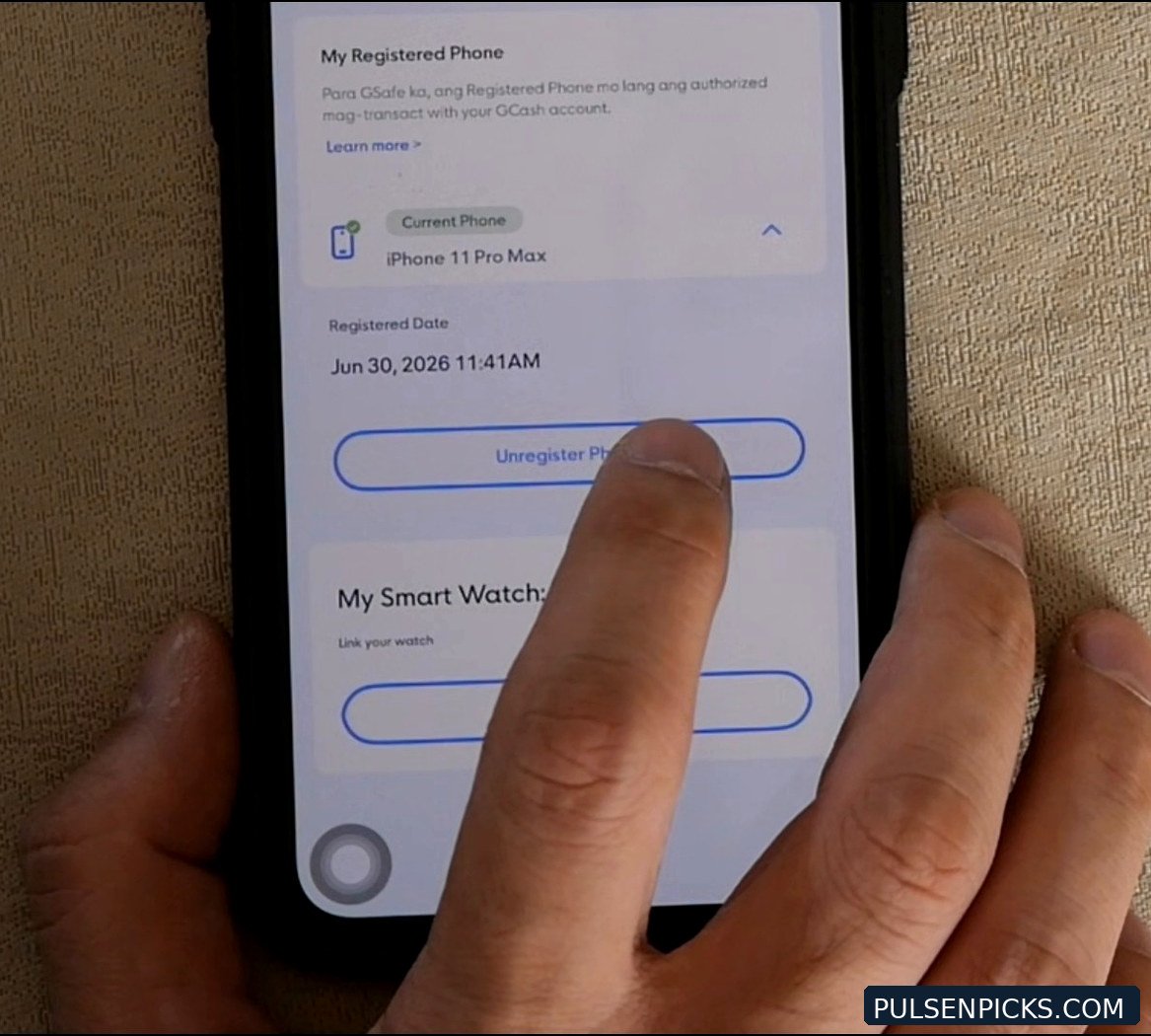
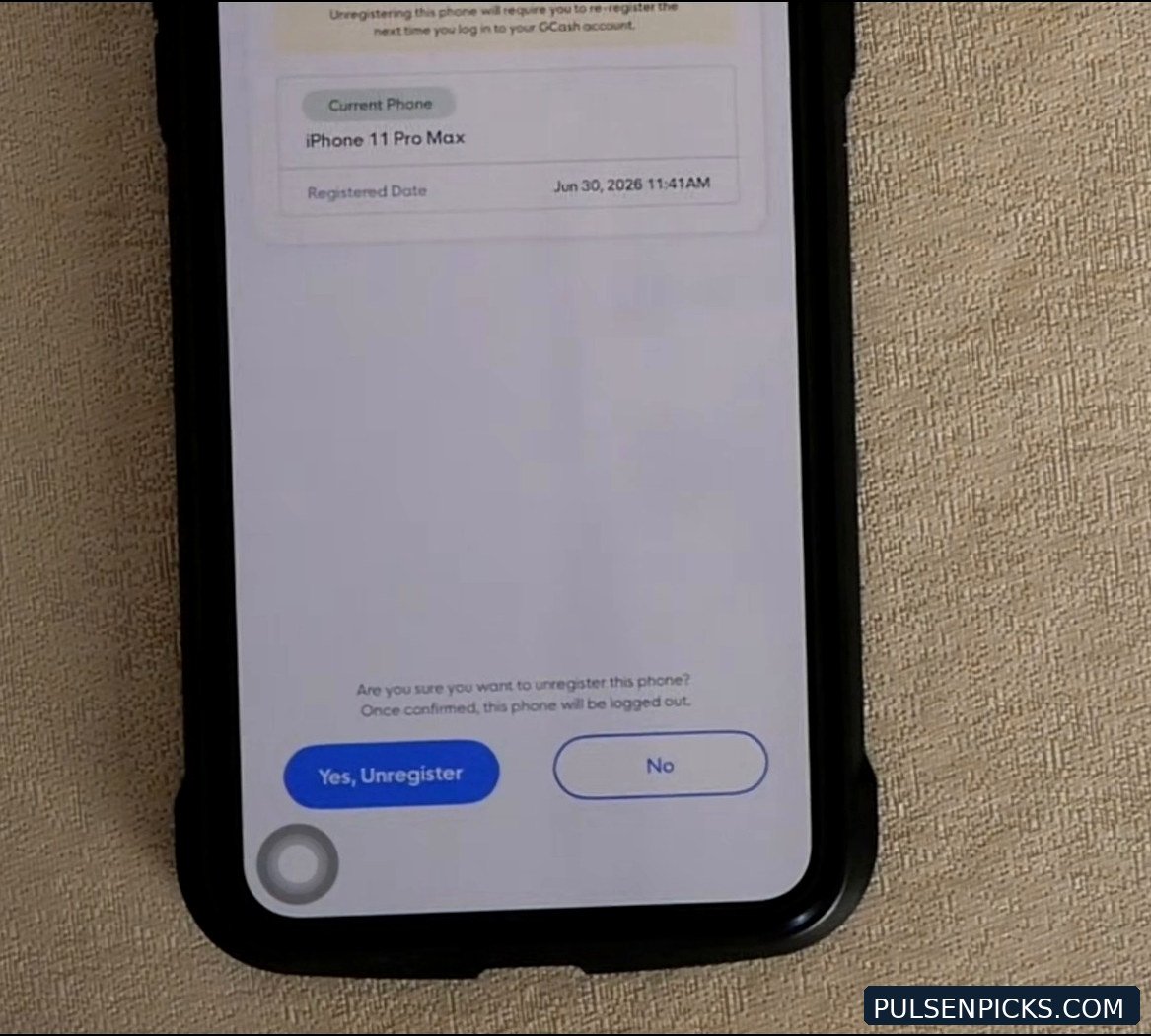
- Select the registered phone and tap Unregister Phone.
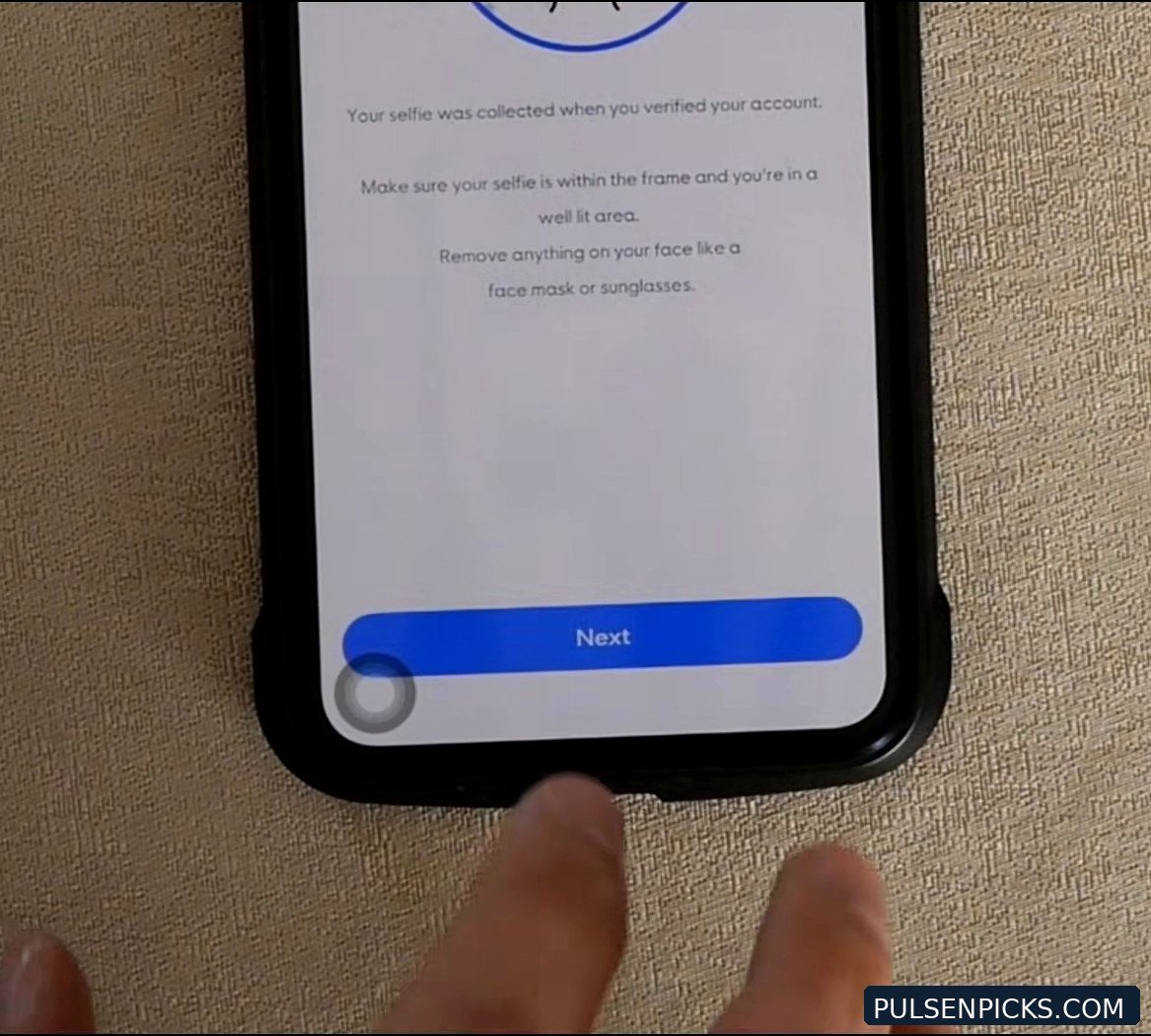
- Tap Yes, Unregister and complete the selfie scan or OTP.
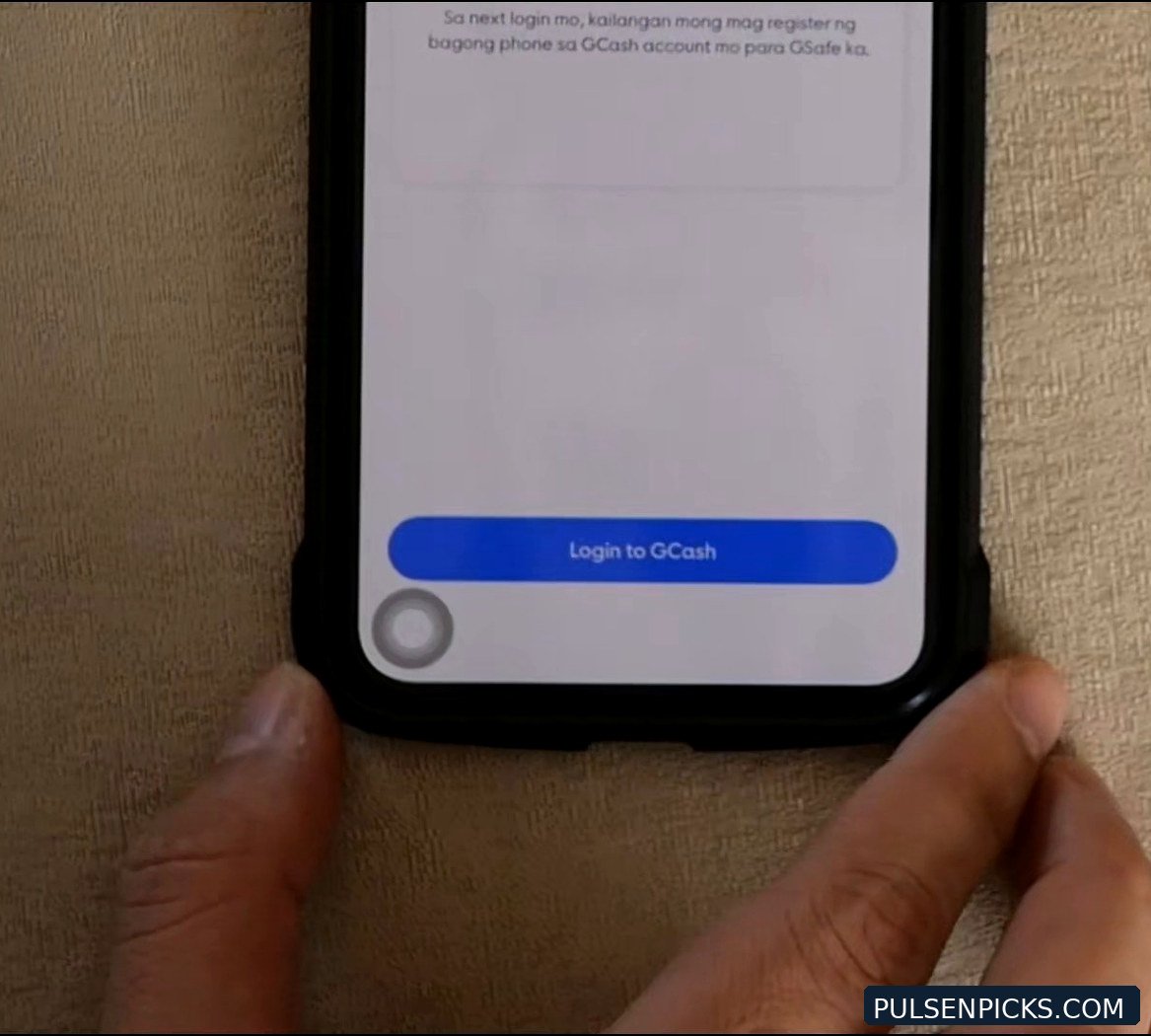
- Wait for the confirmation screen or SMS before continuing.
2. Move the GCash SIM to the new phone
Put the SIM that uses your GCash number into the iPhone 17 Pro Max and check that it can receive texts. If your phone uses eSIM, transfer or activate that number with your mobile carrier instead. Make sure you have a working internet connection too.
Important: You don’t need a new GCash account or a new wallet balance. You’re simply authorizing a different phone to access your existing account.
3. Register your new phone
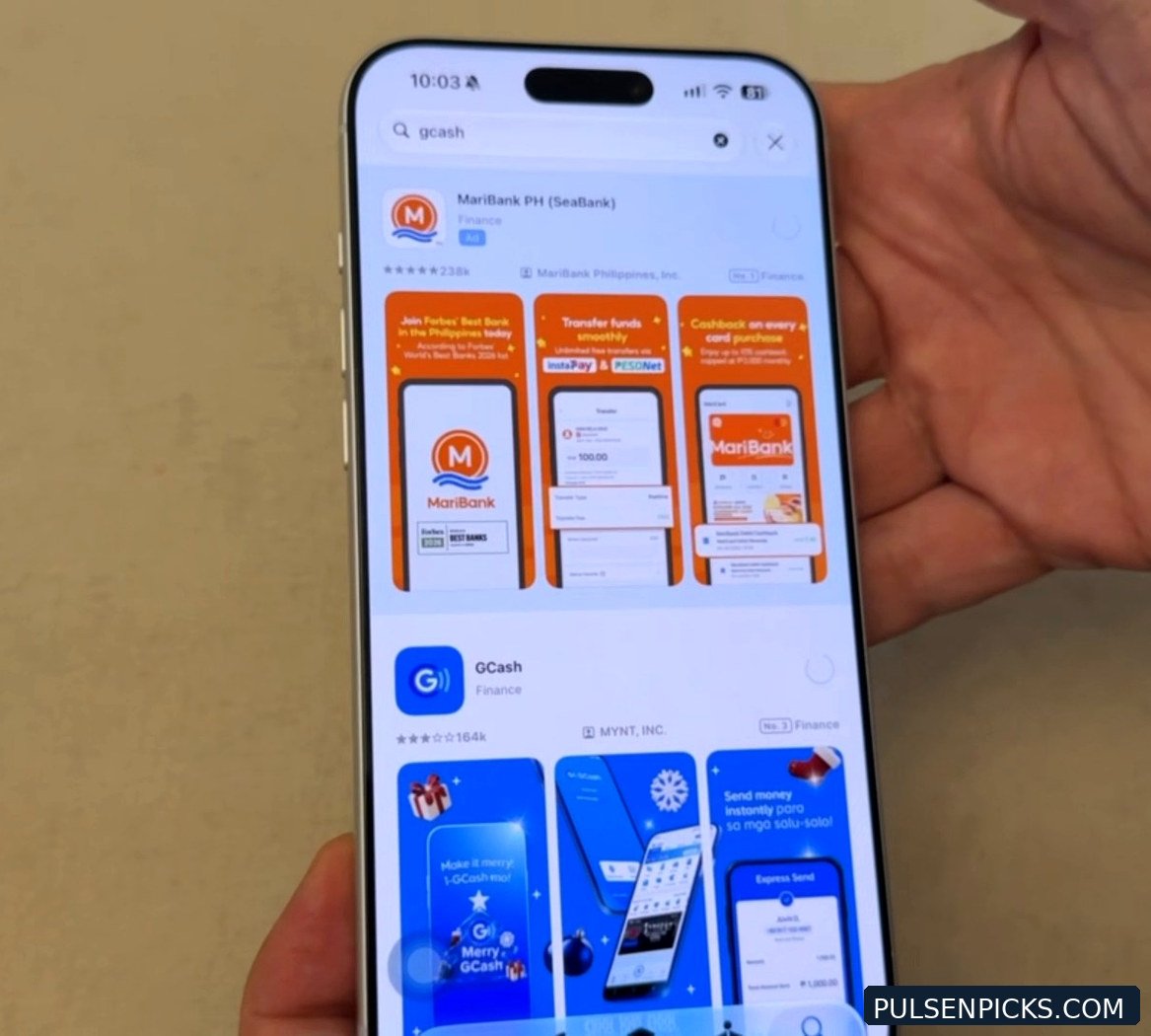
Now open GCash on the iPhone 17 Pro Max using your existing mobile number.
- Sign in to GCash.
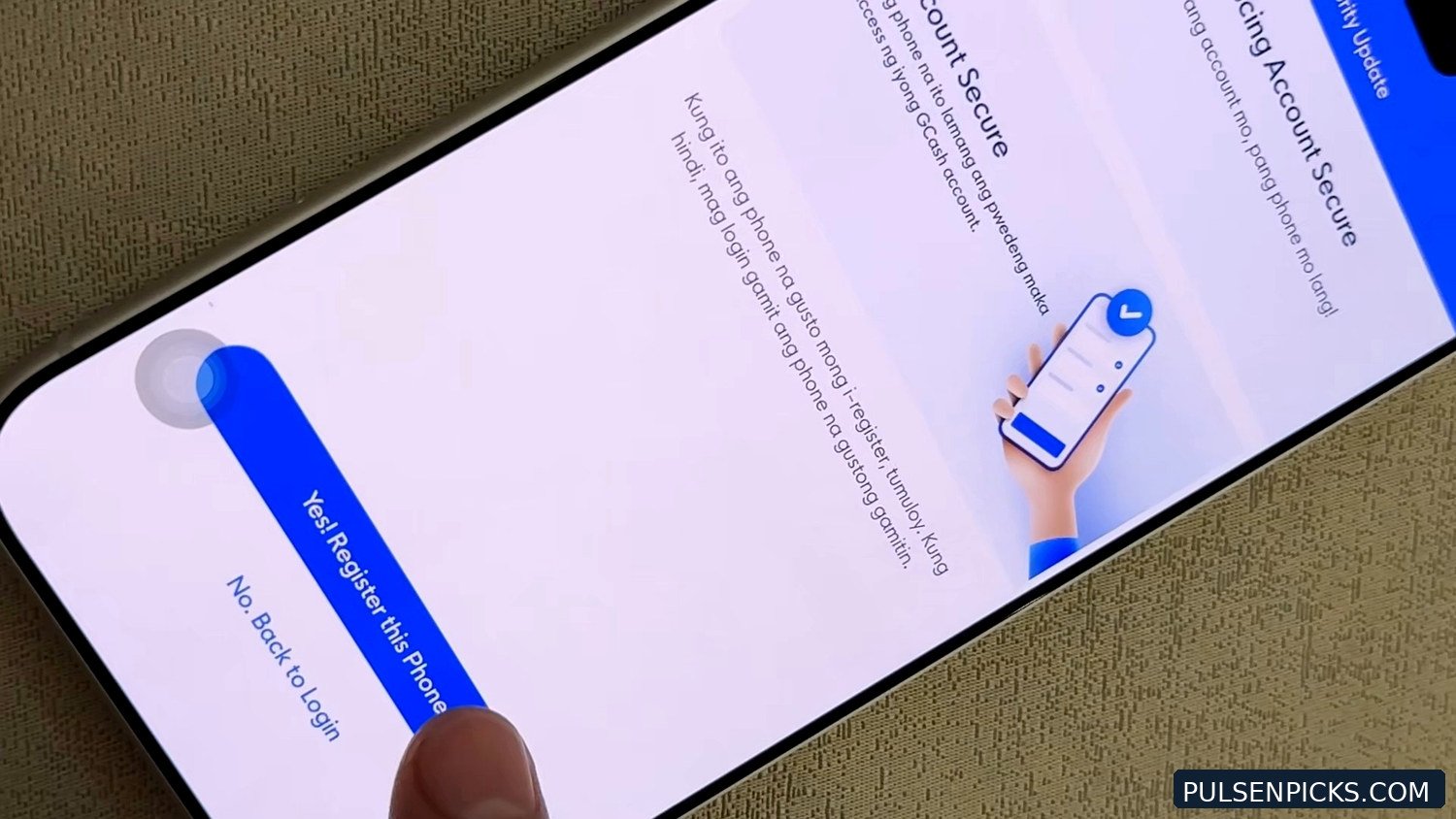
- Tap I want to register this phone when asked.
- Complete the selfie check, OTP and any additional prompts that appear.
- Wait until GCash confirms the new phone is registered.
Yes, it asks a bunch of questions. Still easier than the paperwork I had to deal with years ago!
4. Make sure it actually worked
Open GCash normally and confirm your wallet loads on the new phone. Where available, check the registered-device information. Don’t wipe or give away the old phone until you’ve checked your other important apps too.
What if your old phone is already lost or broken?
Don’t keep guessing or repeatedly attempting verification. GCash has a different recovery procedure if you cannot unregister your previous device. Follow the official GCash device registration guide and use its recovery links for a lost or damaged phone.
Never share your MPIN or OTP with anyone. And remember, the specific requirements may change with GCash app updates.
My ₱500 lesson
I learned the hard way that changing phones without preparing GCash can turn a simple switch into a long headache. I had to submit notarized paperwork back then; I’m not saying everyone needs that today.
Now my rule is simple: unregister, transfer the SIM, register, verify. Follow that order and this should be much less stressful. Easy peasy, lemon squeezy.
Phones used in this tutorial
We moved GCash from the iPhone 11 Pro Max to the iPhone 17 Pro Max. These are the affiliate links to both models:
Prefer Shopee?
Check model, availability and pricing on the retailer’s page before buying. Affiliate links may earn us a small commission.